Forms
Submit Actions
Email notifications, webhooks, Slack, Discord, Google Sheets, and Notion integrations triggered on form submission.
On this page
- Email Notifications
- Configuration
- Custom Sender
- Visual Email Builder
- Attachments
- Example Body Template
- Webhooks
- Visual Message Builder
- Configuration
- Templating the URL
- Example Webhook Body
- Google Sheets
- Connecting your Google account
- Configuration
- Column mappings
- Permissions required
- Managing connections
- Notion
- Connecting your Notion account
- Configuration
- Property mappings
- Template Variables
- Run Conditions
- Enabling and Disabling Actions
- Execution Logs
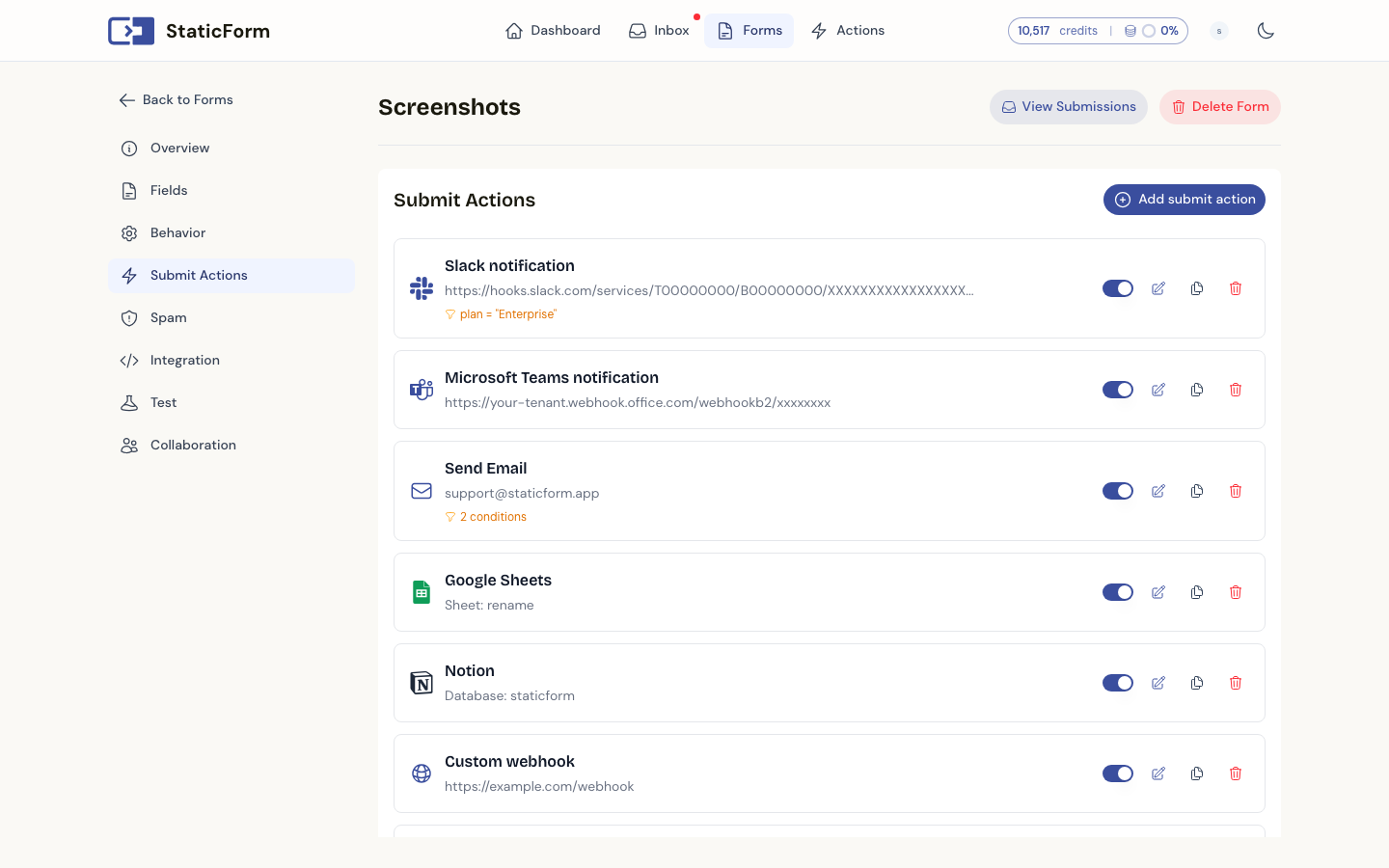
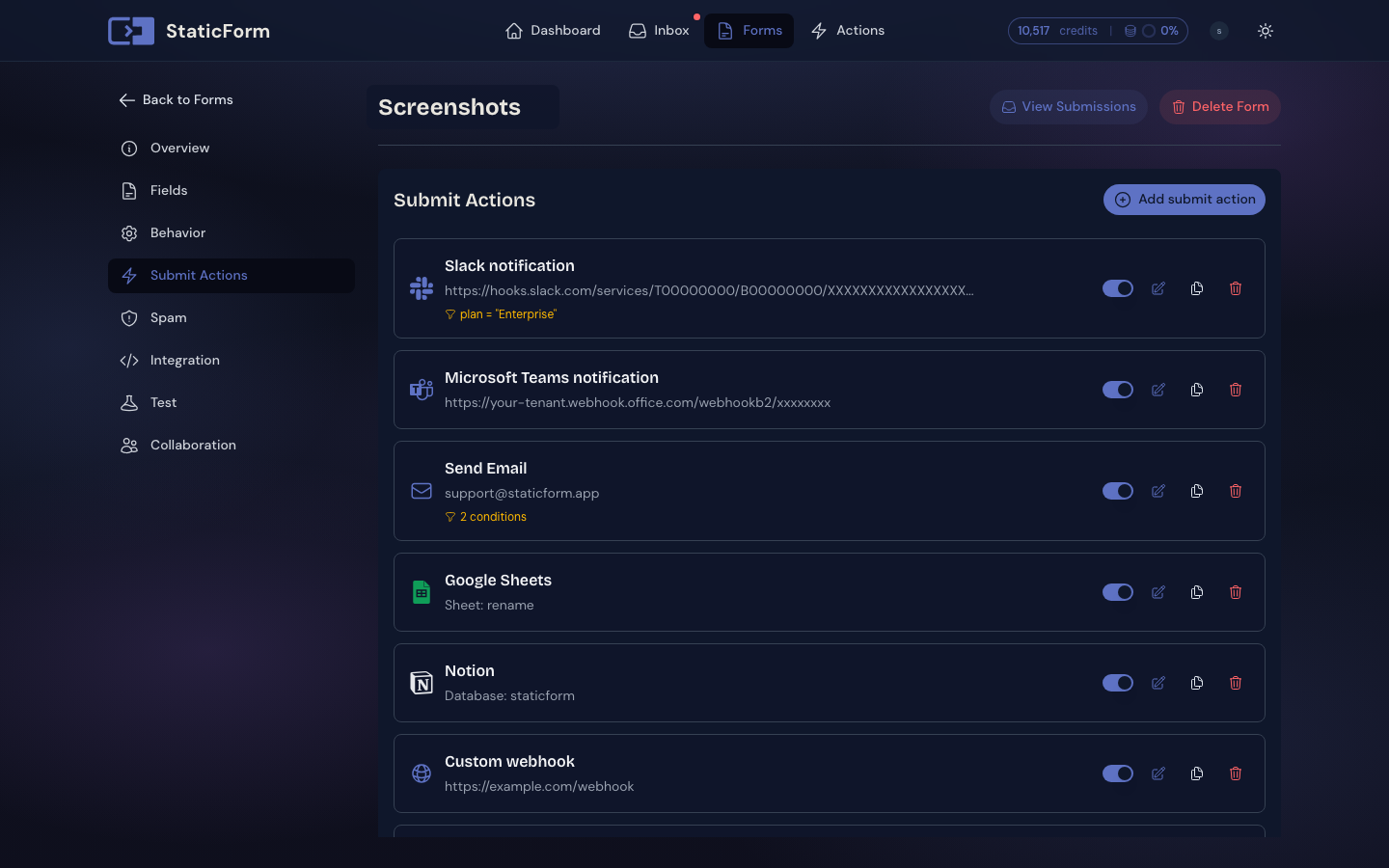
Submit actions define what happens when a form receives a submission. You can configure multiple actions per form.
Email Notifications
Send an email when a submission is received.
Configuration
| Field | Description |
|---|---|
| Send from | Choose the sender for this action: StaticForm’s default sender, a verified custom domain, or a saved SMTP connection. See Custom Sender below. |
| Recipient | One or more email addresses, comma-separated. Can also use a template like {{form.email}} to send to the submitter. |
| Reply-To | Optional reply-to address. Supports templates. |
| Subject | Email subject line. Supports templates. |
| Body Template | HTML email body. Supports templates. Max 10,000 characters. |
| Disable Branding | Remove StaticForm branding from the email footer (Agency tier). |
Custom Sender
By default, email actions are sent from StaticForm’s shared sender (noreply@staticform.app). You can override this per action with your own domain or SMTP server.
Verified domain (managed by StaticForm)
Add your domain in Settings → Integrations → Email Domains. StaticForm publishes DKIM records to Amazon SES on your behalf. Once verified, select the domain in the Send from picker and set:
- From address: the local part before the
@(e.g.forms→forms@yourdomain.com). Defaults toforms. - From name: the display name shown in email clients (e.g.
Acme Forms).
SMTP connection
Add your own SMTP server in Settings → Integrations → SMTP Connections. Presets are available for common providers (AWS SES SMTP, Mailgun, SendGrid, Postmark, Resend, Brevo, Google Workspace, Microsoft 365, and others), or enter any host directly. The From address and From name are configured on the connection itself and cannot be overridden per action.
Emails sent via an SMTP connection are delivered by your own server, so they do not count toward the Starter plan’s 25,000 email action quota.
Visual Email Builder
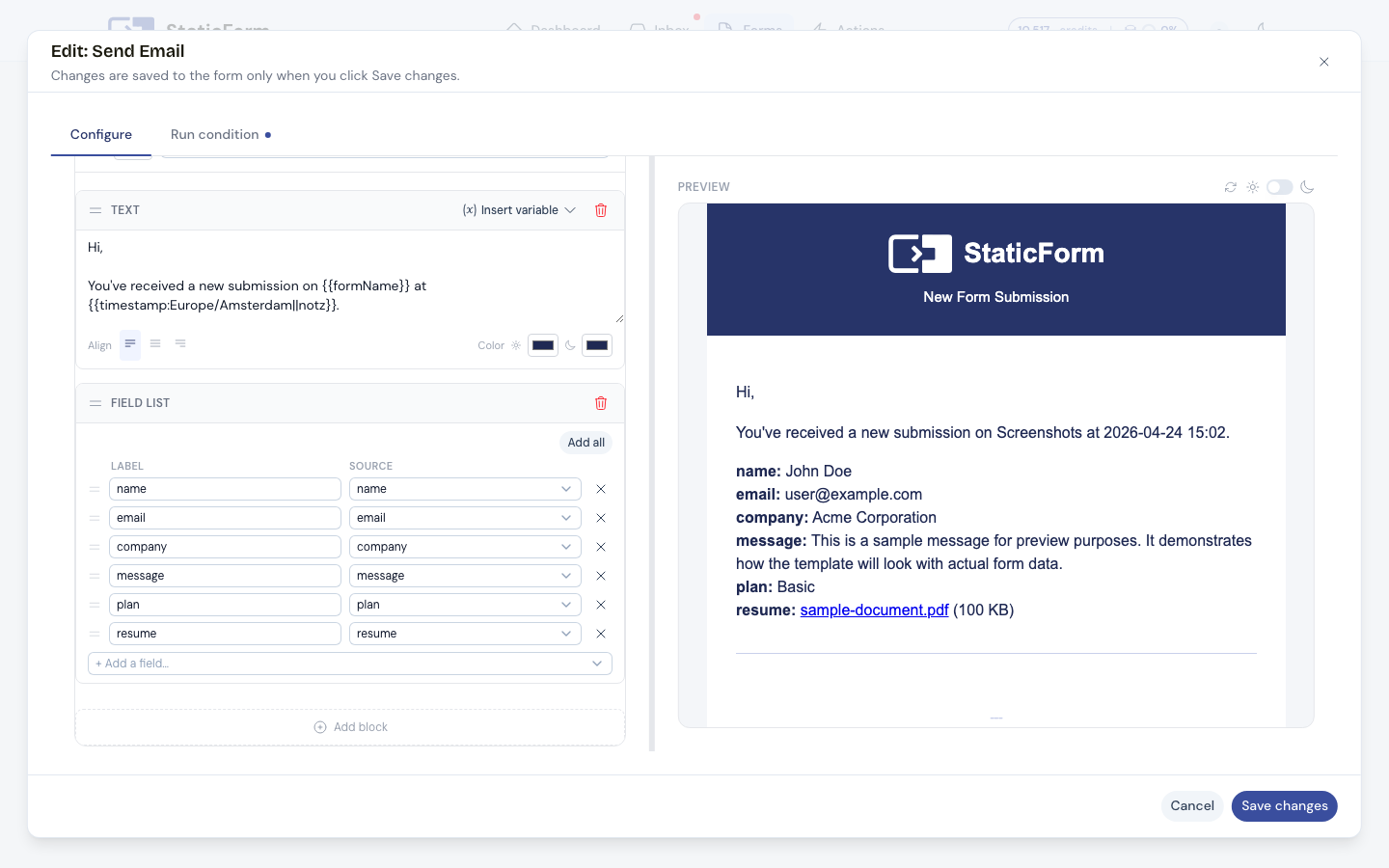
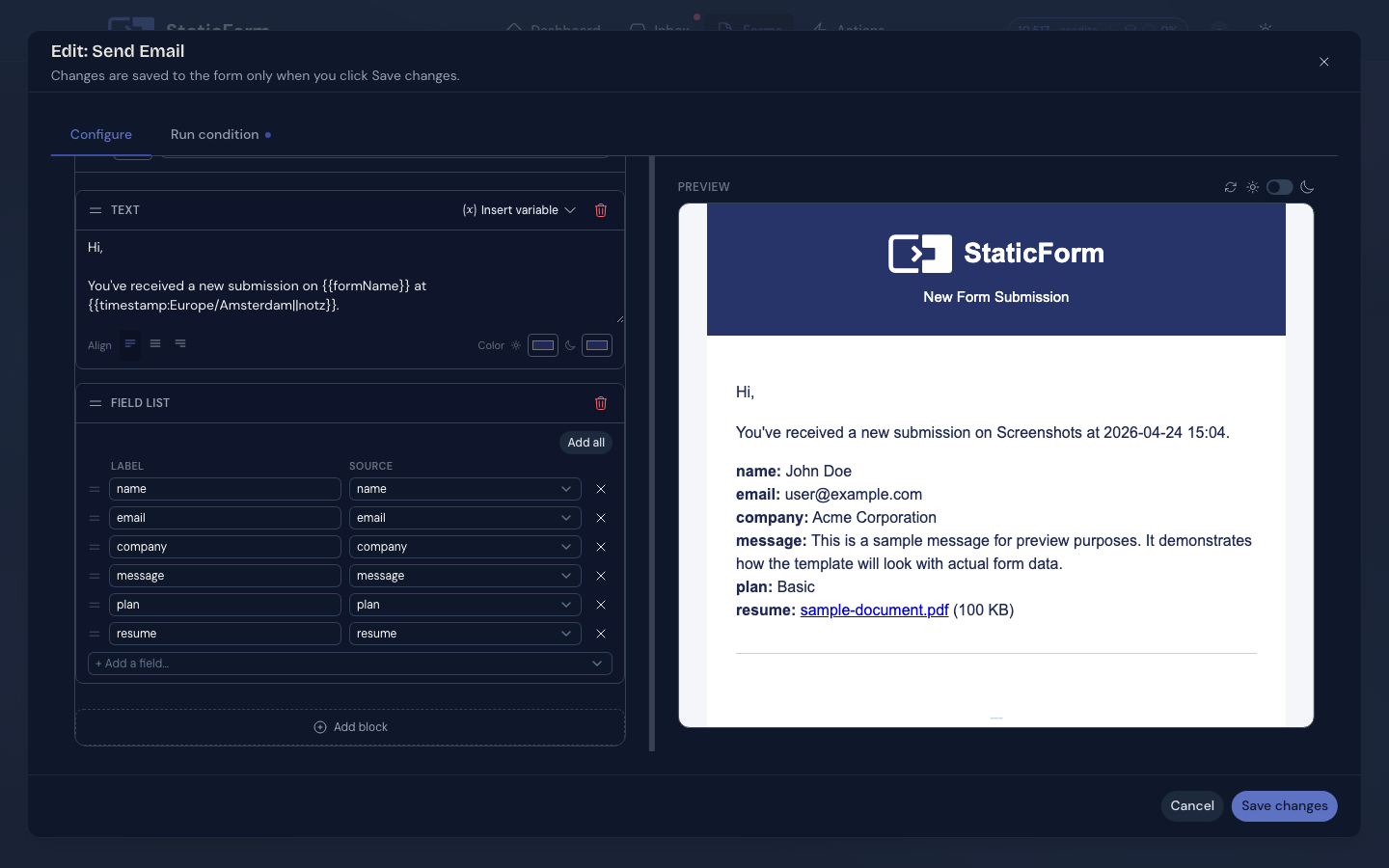
The email action includes a visual block-based editor with a live preview. You can add and reorder content blocks (text, fields, images, dividers), switch between light and dark preview, and toggle custom HTML mode for full control. Changes are reflected in the preview in real time.
Attachments
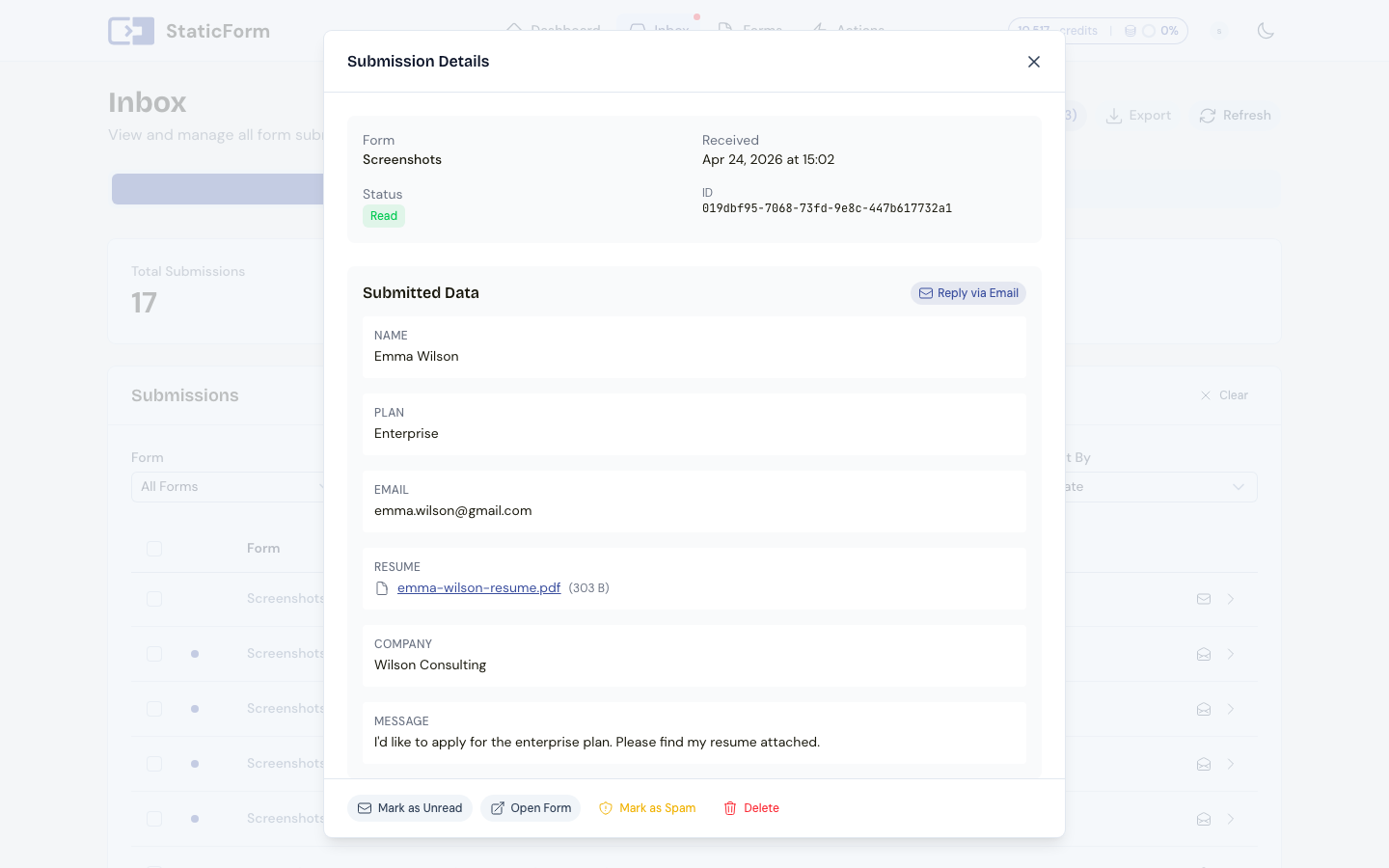
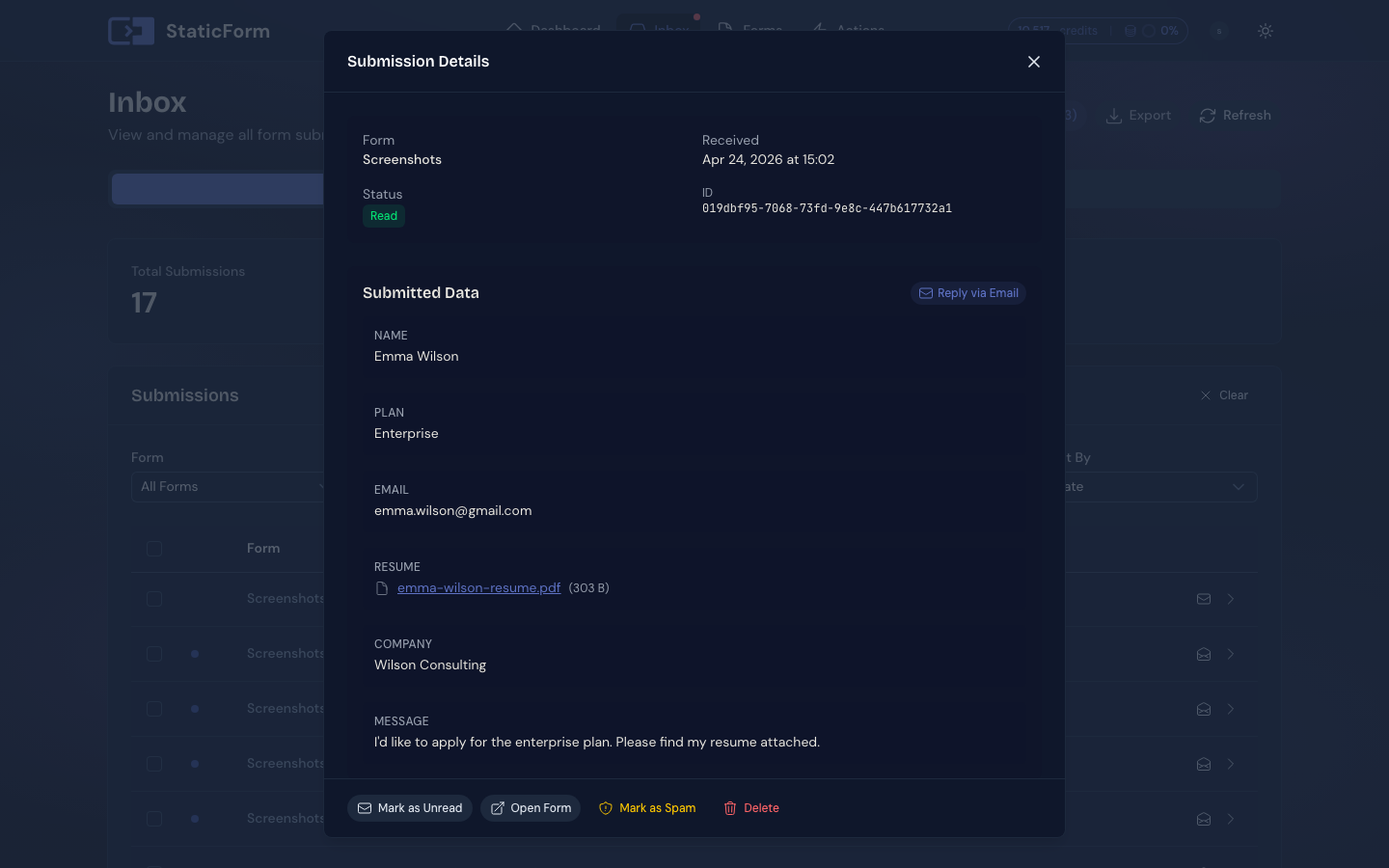
You can attach uploaded files from a submission to the email. Any file field on your form can be forwarded as an email attachment. Attachments are optional and can each carry their own send condition, so you have full control over which files go to which recipients.
Conditional attachments let you attach a file only when the submission data matches a rule. The condition can check any field on the form. Common patterns:
- Attach a resume only when the applicant selects “Yes, include my CV”.
- Send a signed NDA only when the
planfield is “Enterprise”. - Skip an attachment entirely when the file field is empty.
Each attachment is evaluated independently, so one email can include some attachments but not others depending on what the submitter provided.
Example Body Template
<h2>New contact form submission</h2>
<p><strong>Name:</strong> {{form.name}}</p>
<p><strong>Email:</strong> {{form.email}}</p>
<p><strong>Message:</strong> {{form.message}}</p>
<p><em>Received at {{timestamp:Europe/Amsterdam}}</em></p>
Webhooks
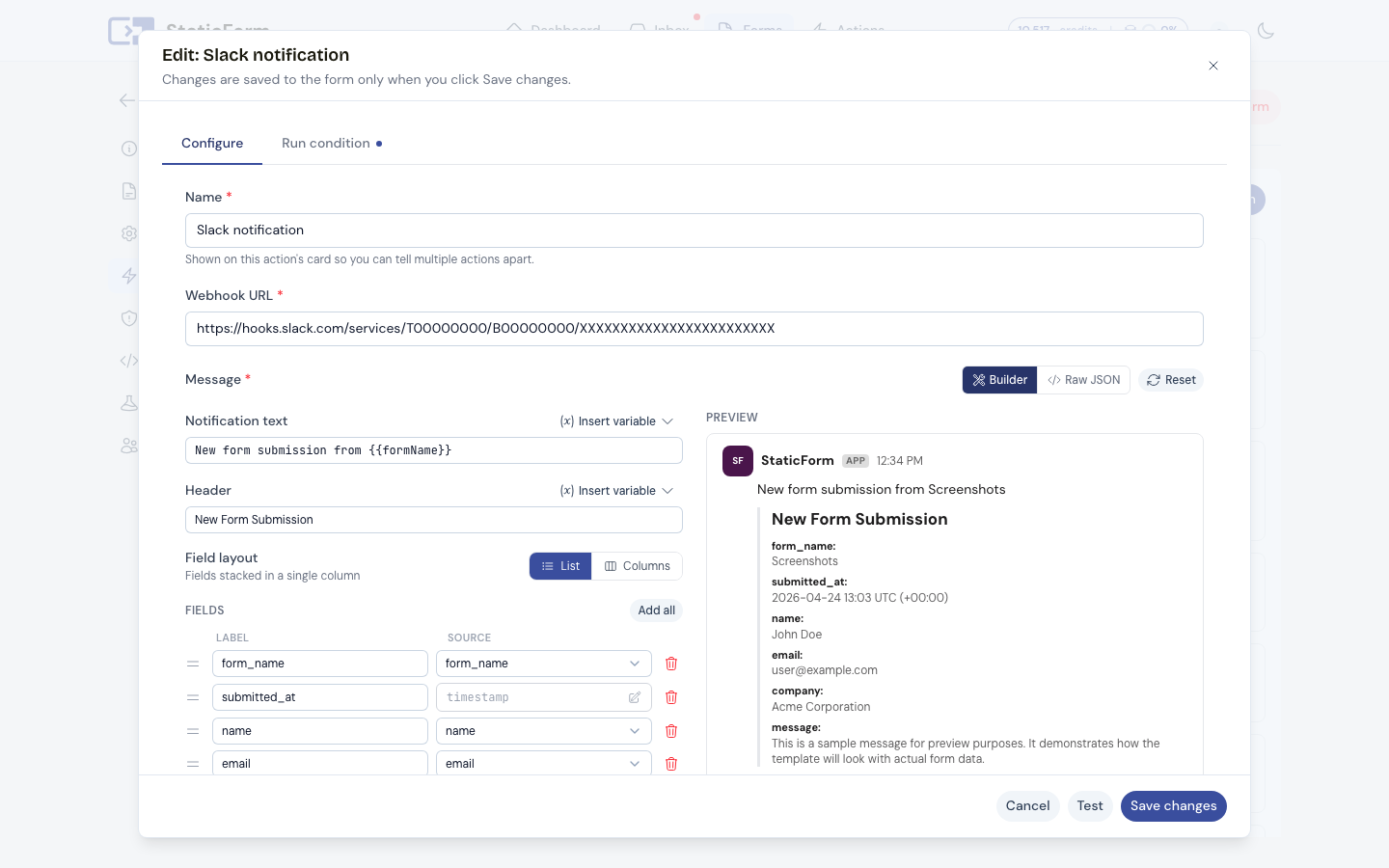
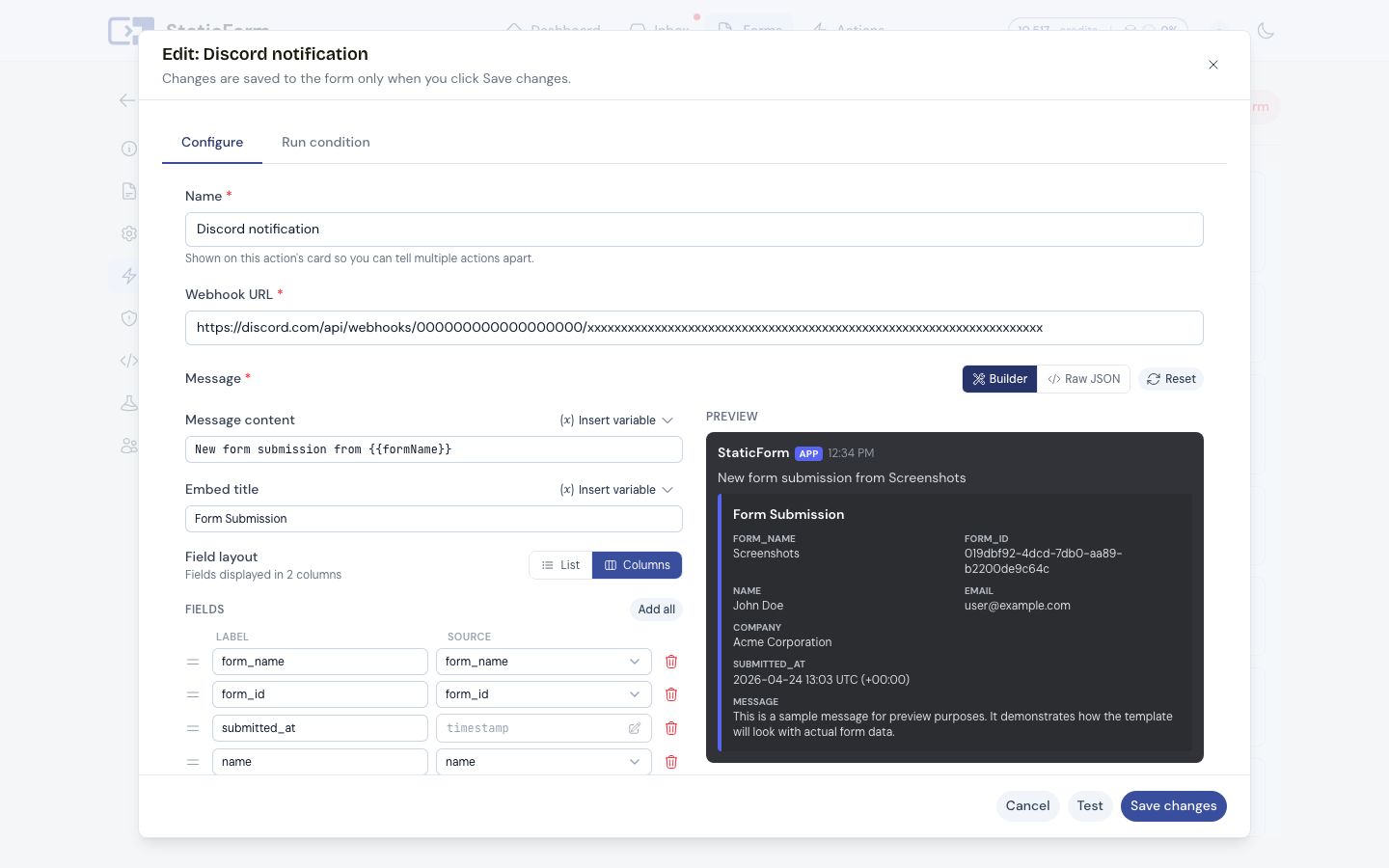
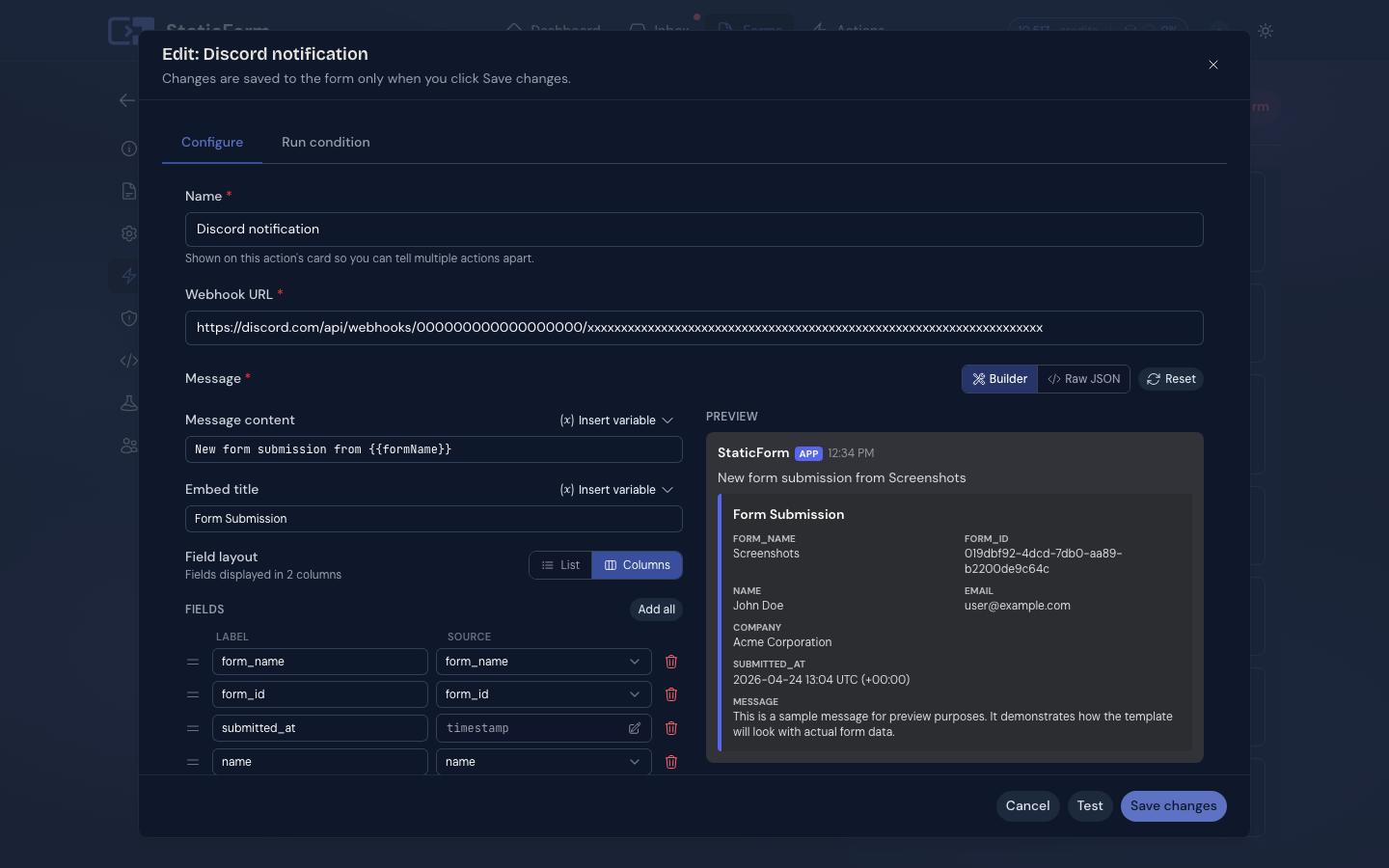
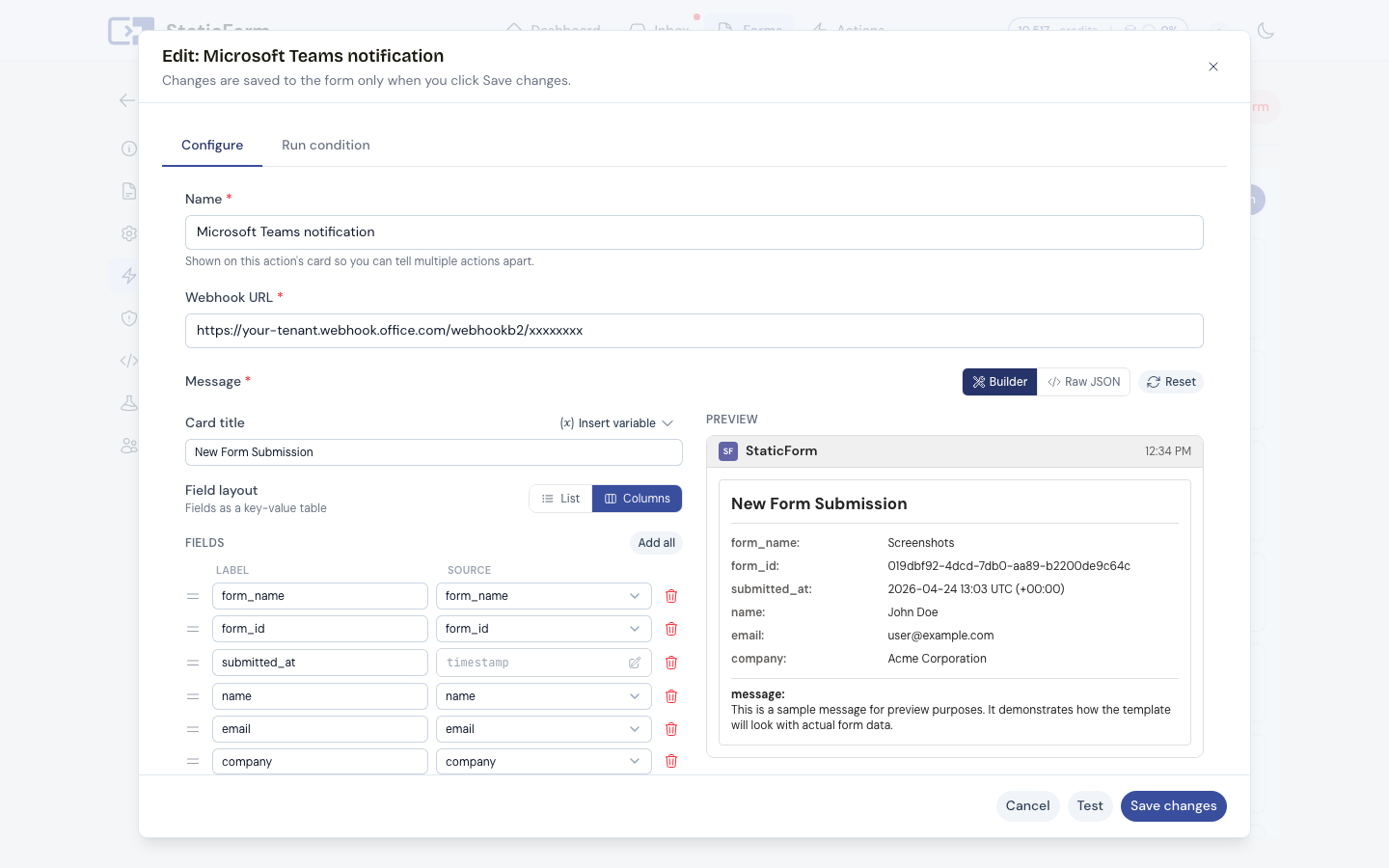
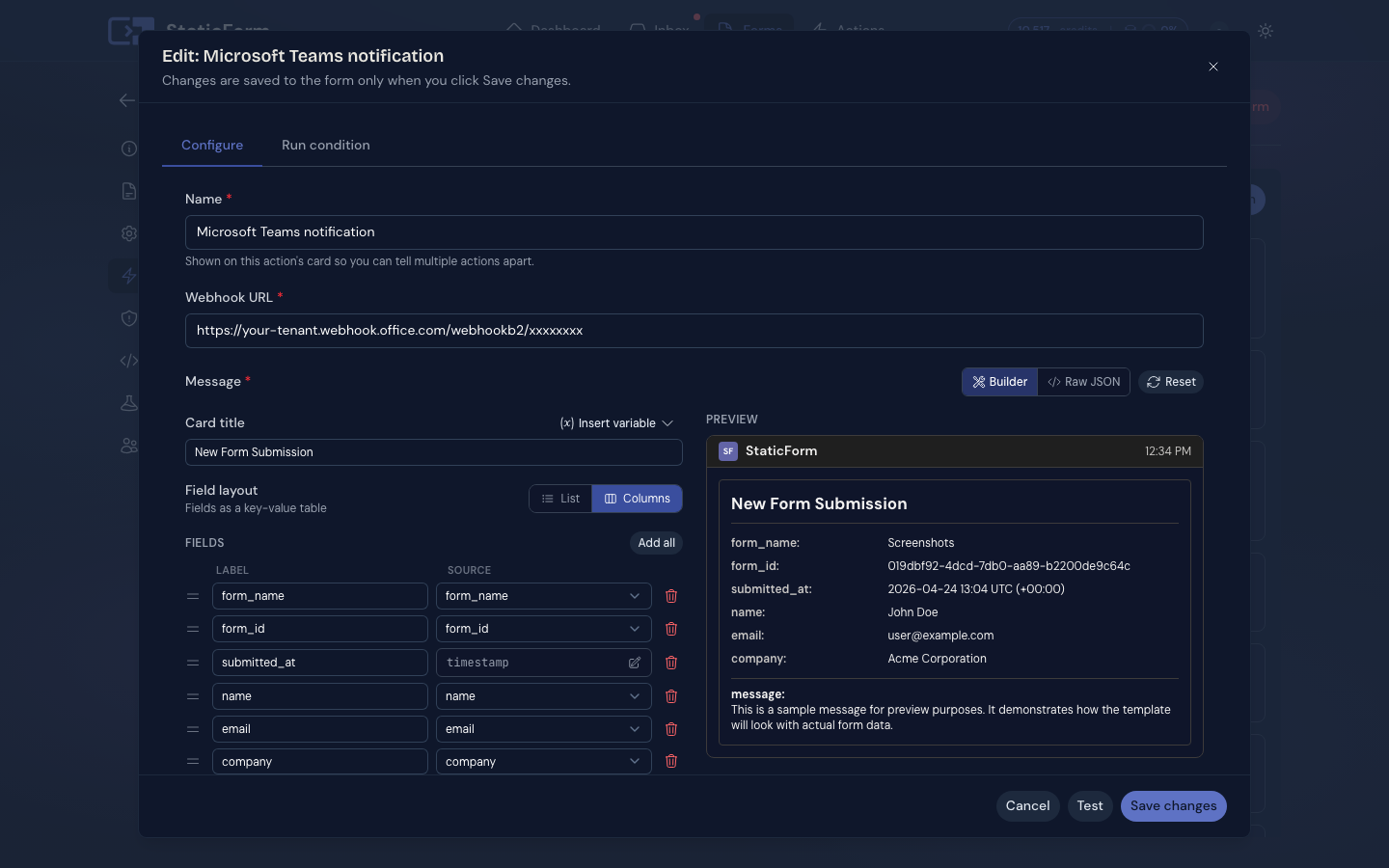
Send an HTTP request to any URL when a submission is received. StaticForm includes built-in support for Slack, Discord, and Microsoft Teams with a visual message builder and live preview.
Visual Message Builder
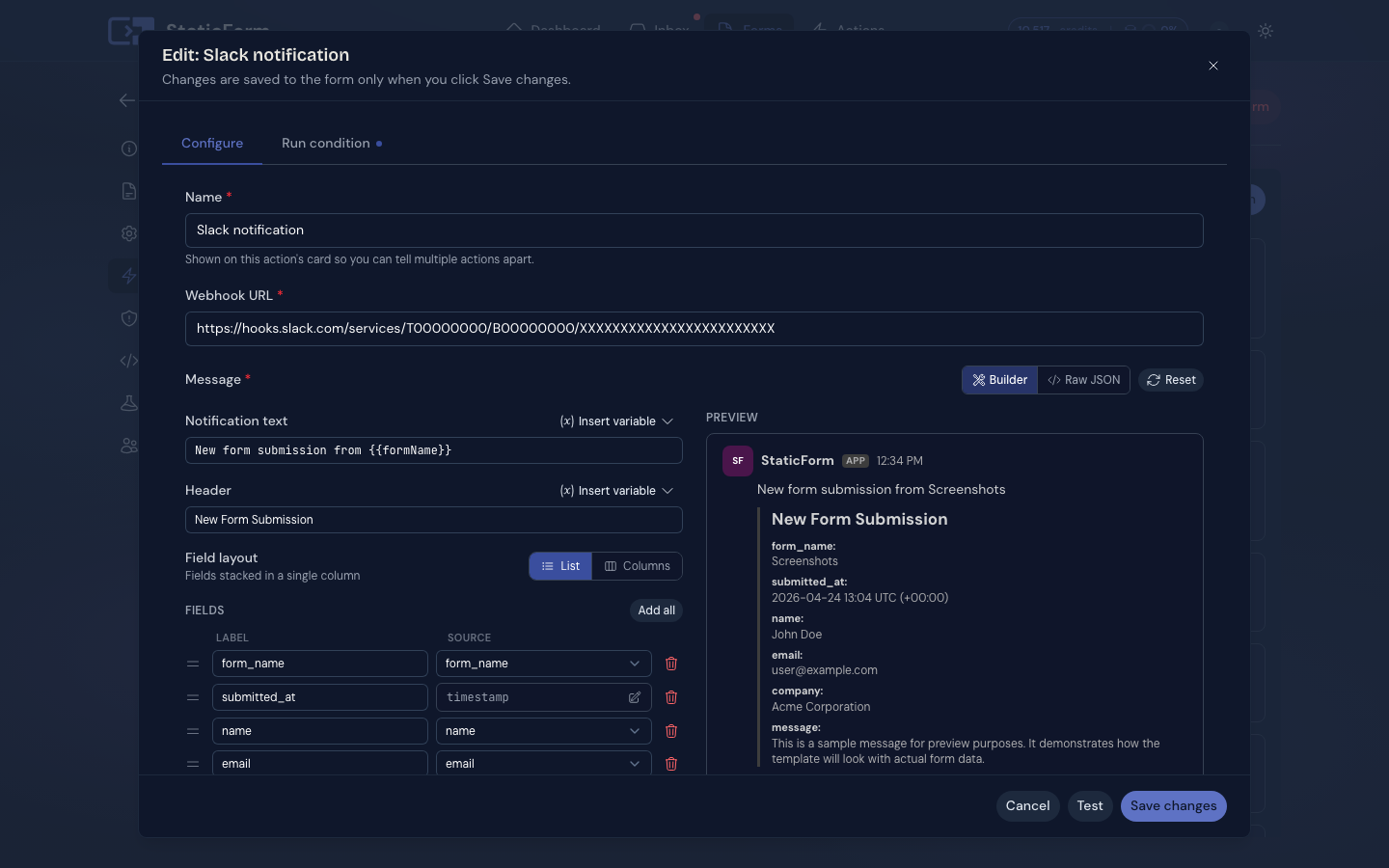
For Slack, Discord, and Microsoft Teams webhooks, StaticForm shows a message builder with a live preview of how your message will look. You can add blocks, insert field variables, and test the webhook directly from the editor with sample data.
Configuration
| Field | Description |
|---|---|
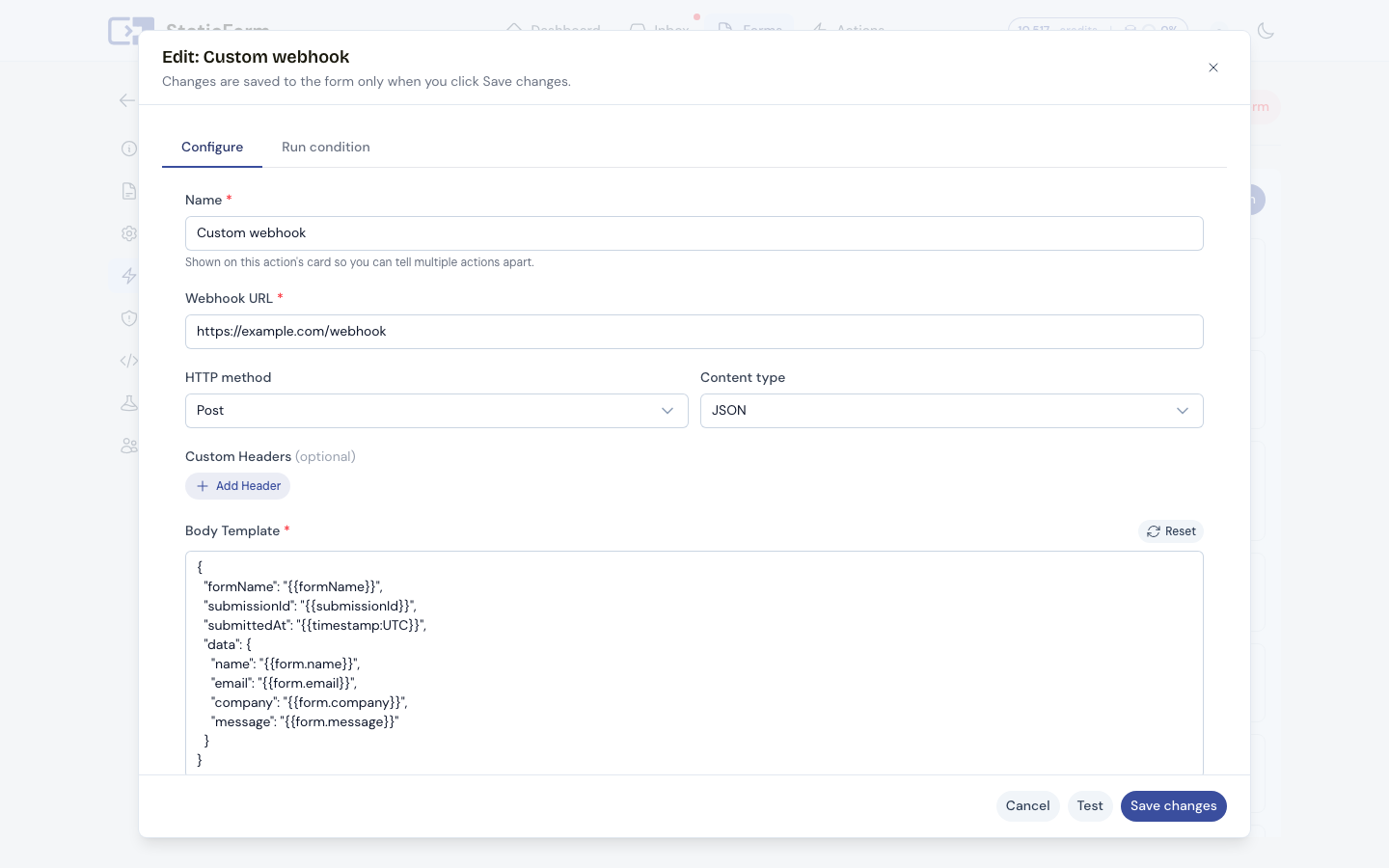
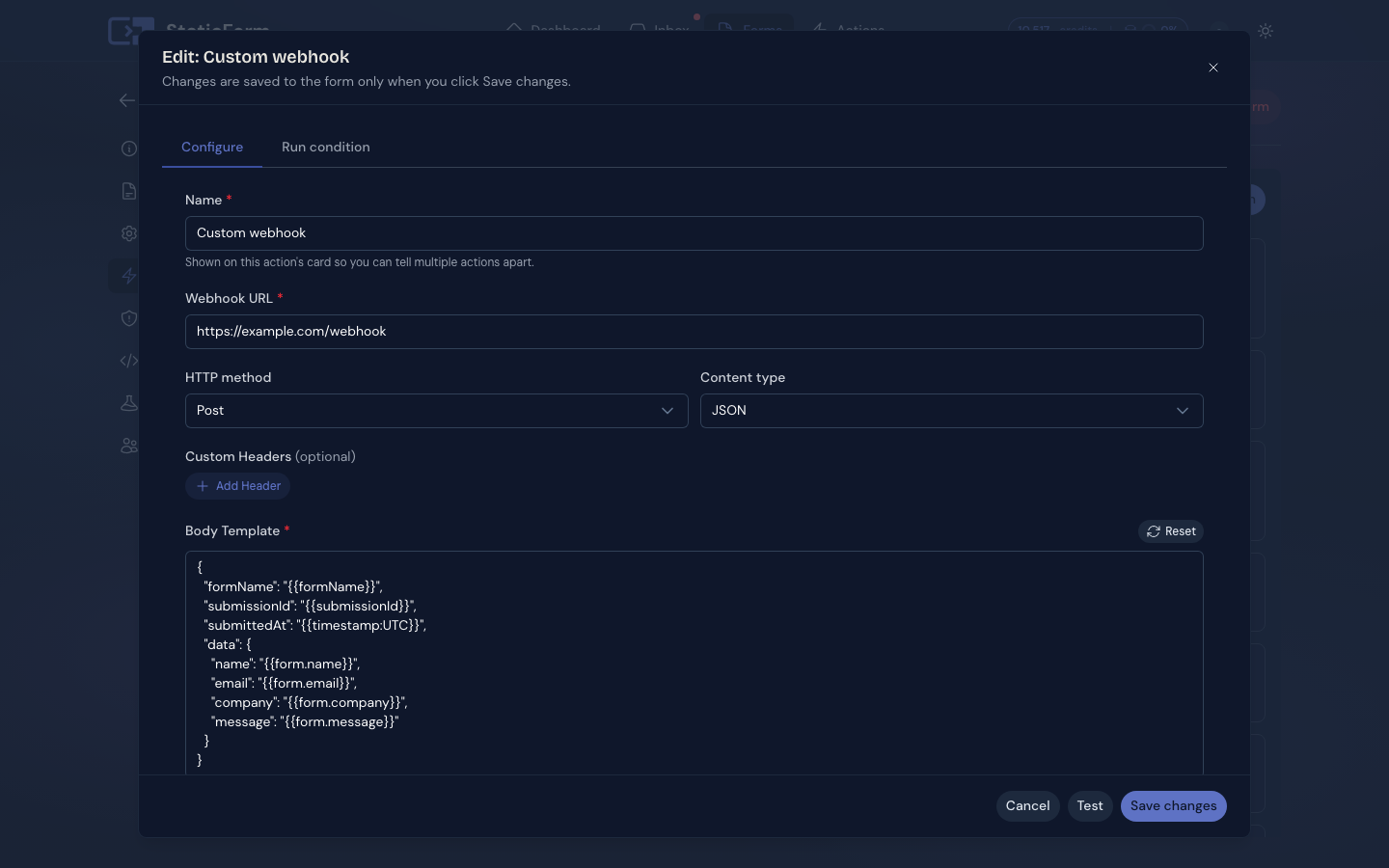
| URL | The webhook endpoint (HTTP or HTTPS, max 2048 chars). Supports template variables (see below). |
| HTTP Method | GET, POST, PUT, PATCH, or DELETE (default: POST) |
| Content Type | application/json or application/x-www-form-urlencoded (default: JSON) |
| Headers | Custom HTTP headers (up to 50 headers) |
| Body Template | Request body. Supports templates. Max 10,000 characters. |
Templating the URL
The URL accepts the same {{token}} variables as the body, so you can target an endpoint that depends on the submission. For example, to add a buyer to a GitHub repository by the github_username they entered:
PUT https://api.github.com/repos/your-org/your-repo/collaborators/{{form.github_username}}Submitted values are URL-encoded automatically before they are inserted, so a value cannot break out of the path or query, add parameters, or redirect the request to a different endpoint. Use the variables menu next to the URL field to insert tokens, and the Test button to try a templated URL with sample data.
Example Webhook Body
{
  "name": "{{form.name}}",
  "email": "{{form.email}}",
  "message": "{{form.message}}",
  "submitted_at": "{{timestamp:UTC}}"
}
Google Sheets
Append every form submission as a new row in a Google Sheet. Uses OAuth 2.0 so StaticForm only accesses sheets you explicitly select via the Google Picker.
Connecting your Google account
Before you can add a Google Sheets action, connect at least one Google account:
- Open Settings → Integrations.
- Click Connect Google account and complete the OAuth flow.
- StaticForm requests the
drive.filescope only; it can only read or write sheets you pick via the Picker, nothing else in your Drive.
You can connect multiple accounts and reuse a single connection across multiple forms.
Configuration
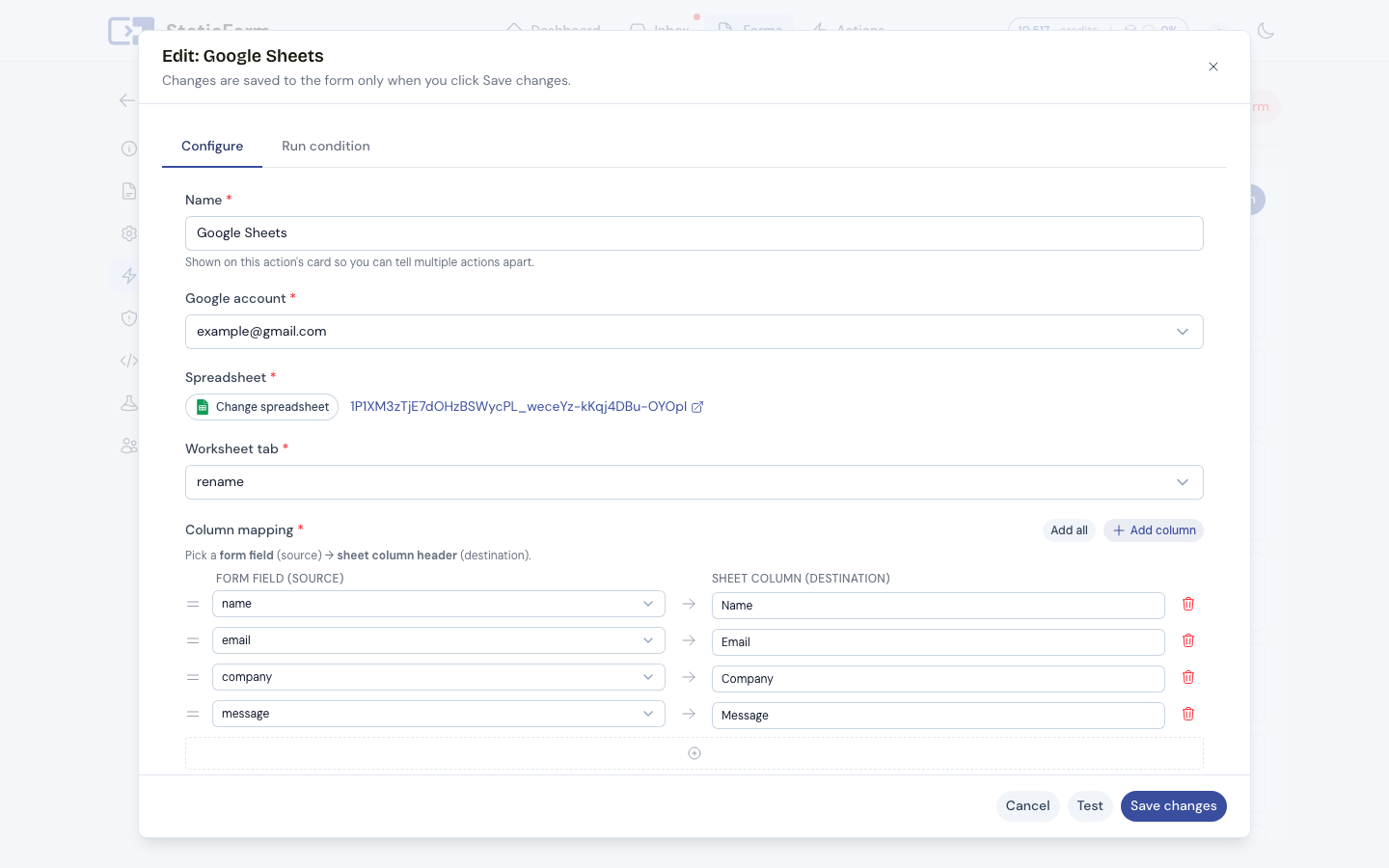
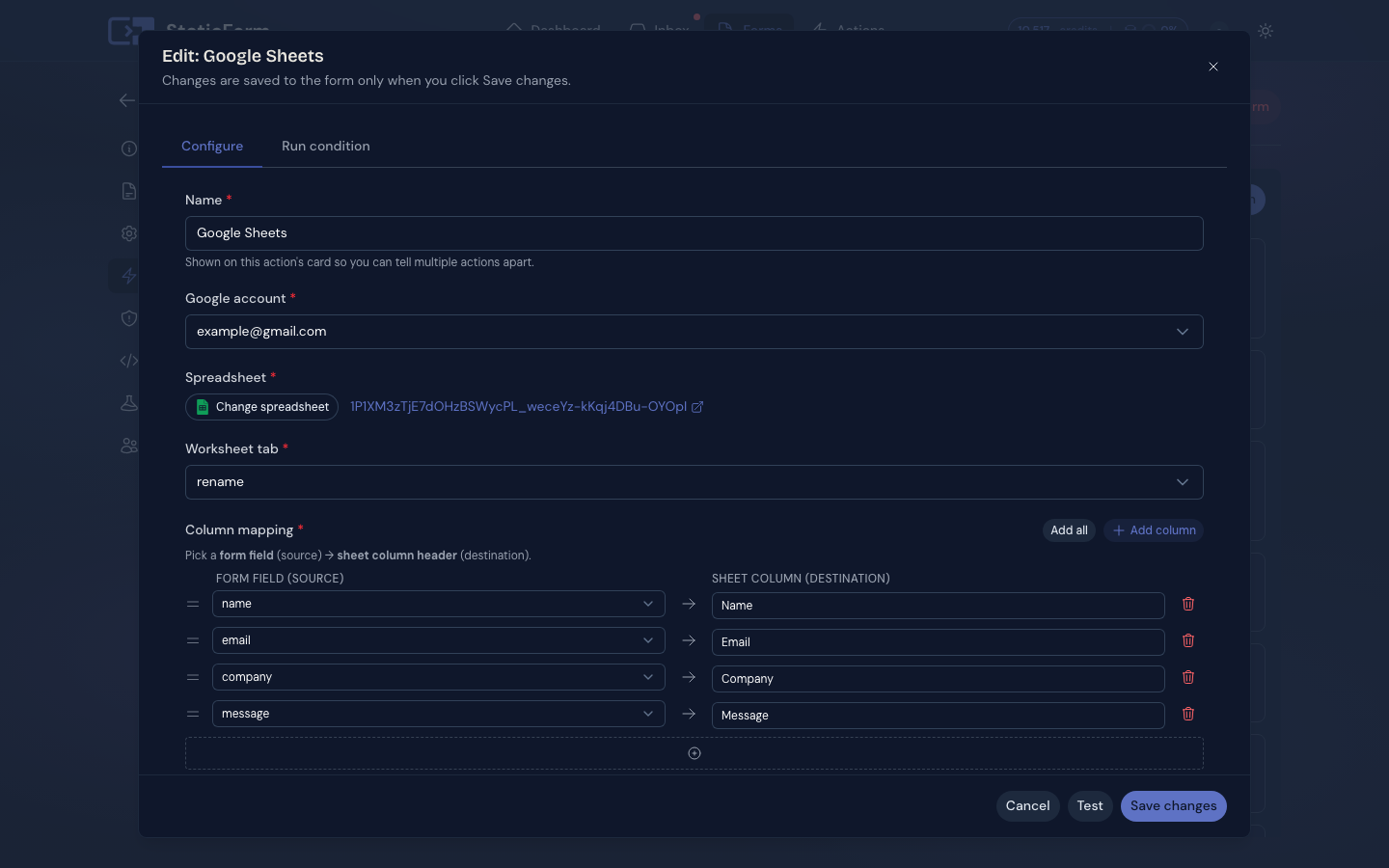
| Field | Description |
|---|---|
| Google account | The connected Google account to use for this action. |
| Spreadsheet | Click Pick a spreadsheet to open the Google Picker and select a file. |
| Sheet tab | The tab within the spreadsheet to append rows to. |
| Column mappings | Map spreadsheet columns to form fields or metadata values. Drag to reorder. |
Column mappings
Each mapping has two parts: a source (selected from a dropdown) and a column header (the name of the column in your sheet). The source dropdown lists all your form fields, plus three metadata options: Submission ID, Submission timestamp, and Form name.
If the sheet tab is empty when the first submission arrives, StaticForm writes a bold header row using your column headers before appending the first data row.
Permissions required
Your account must have the Manage Google connections permission (enabled by default for all users).
Managing connections
From Settings → Integrations you can:
- View which forms use each connected account.
- Disable or remove individual usages.
- Disconnect an account. If the account is in use by one or more forms, you’ll see a conflict dialog listing those forms with options to disable or remove each usage before disconnecting.
Notion
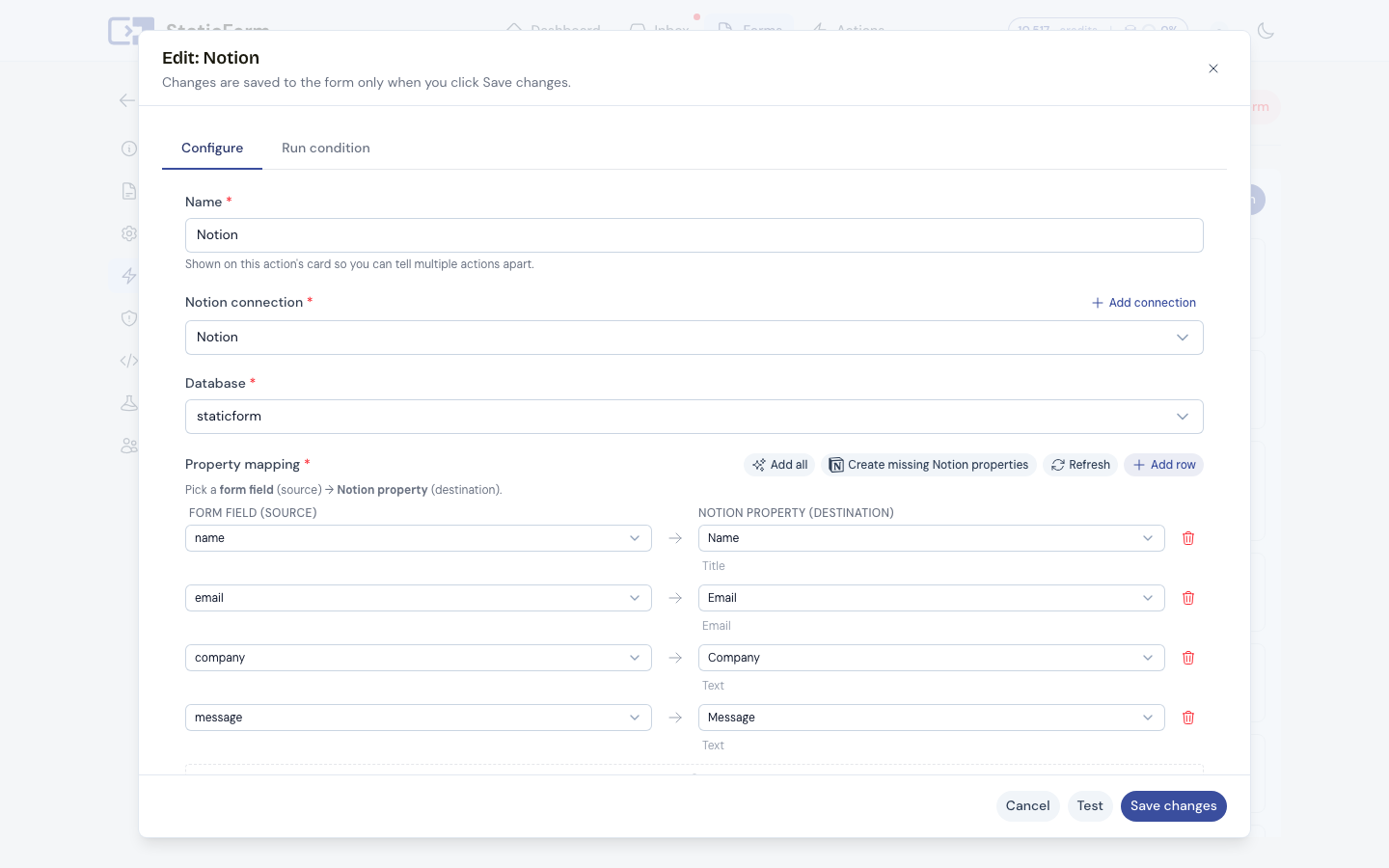
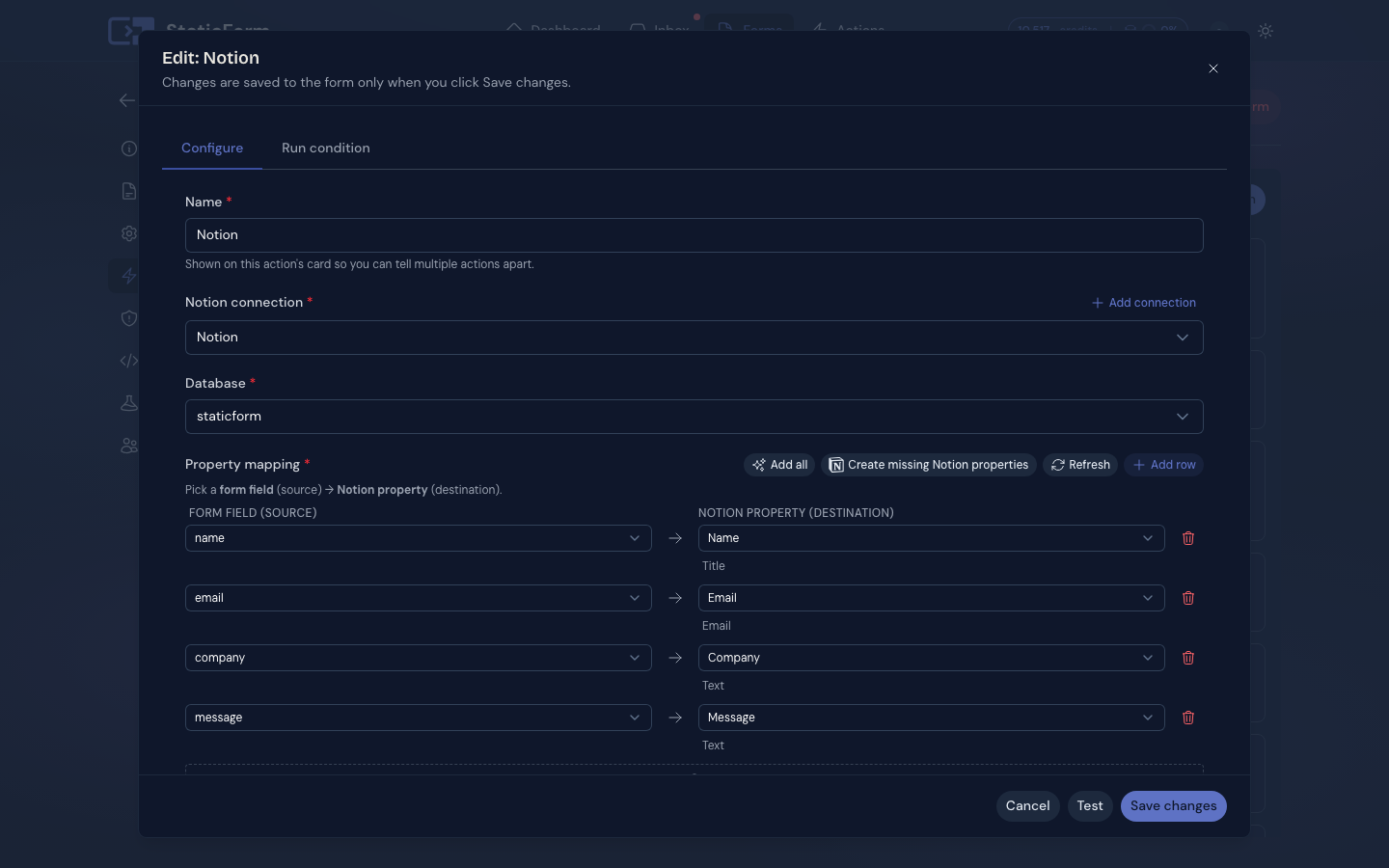
Insert every form submission as a new page (row) in a Notion database. Connect using a Notion internal integration token so StaticForm only accesses the databases you explicitly share with the integration.
Connecting your Notion account
Before you can add a Notion action, connect at least one Notion integration:
- Open Settings → Integrations.
- Click Add Notion connection.
- Go to notion.so/my-integrations, create an internal integration, and copy the Integration Access Token.
- In the integration settings, go to the Content access tab and add the Notion databases you want to sync.
- Paste the token into StaticForm and save the connection.
You can add multiple connections and reuse a single connection across multiple forms.
Configuration
| Field | Description |
|---|---|
| Notion connection | The connected Notion integration to use for this action. |
| Database | The Notion database to insert rows into (loaded from the integration). |
| Property mappings | Map Notion database properties to form fields or metadata values. |
Property mappings
Each mapping links a Notion property (column in your database) to a form field or a metadata value (submission ID, timestamp, form name). StaticForm reads the property schema directly from your Notion database and formats values to match.
Supported property types: title, rich_text, email, url, phone_number, number, checkbox, date, select, multi_select.
If you add new fields to your form after setting up the action, click Sync schema in the action editor to refresh the property list. Use Create missing properties to automatically add Notion properties for any form fields that are not yet mapped.
File attachment fields are written as absolute download URLs.
Template Variables
All submit action templates support these variables:
| Variable | Description |
|---|---|
{{form.fieldname}} |
Value of a submitted field |
{{timestamp}} |
Current UTC timestamp |
{{date}} |
Current UTC date |
{{time}} |
Current UTC time |
{{timestamp:TIMEZONE}} |
Timestamp in a specific timezone (e.g. {{timestamp:Europe/Amsterdam}}) |
{{date:TIMEZONE}} |
Date in a specific timezone |
{{time:TIMEZONE}} |
Time in a specific timezone |
{{timestamp:TIMEZONE|FORMAT}} |
Timestamp with a custom display format (e.g. {{timestamp:Europe/Amsterdam|dd/MM/yyyy HH:mm}}) |
{{timestamp:TIMEZONE||notz}} |
Timestamp without the timezone name and offset in the output |
{{timestamp:TIMEZONE|FORMAT|notz}} |
Custom format without timezone suffix |
{{formName}} |
Name of the form |
{{submissionId}} |
Unique submission ID |
TIMEZONE must be a valid IANA time zone name such as Europe/Amsterdam, America/New_York, or Asia/Tokyo.
FORMAT uses .NET custom date and time format strings such as dd/MM/yyyy HH:mm (24h) or MM/dd/yyyy h:mm tt (12h with AM/PM). When omitted, the default format for the variable type is used.
The notz flag suppresses the timezone name and UTC offset that {{timestamp}} normally appends to the output. This is useful when the format already makes the timezone clear, or when you simply prefer a cleaner value.
Run Conditions
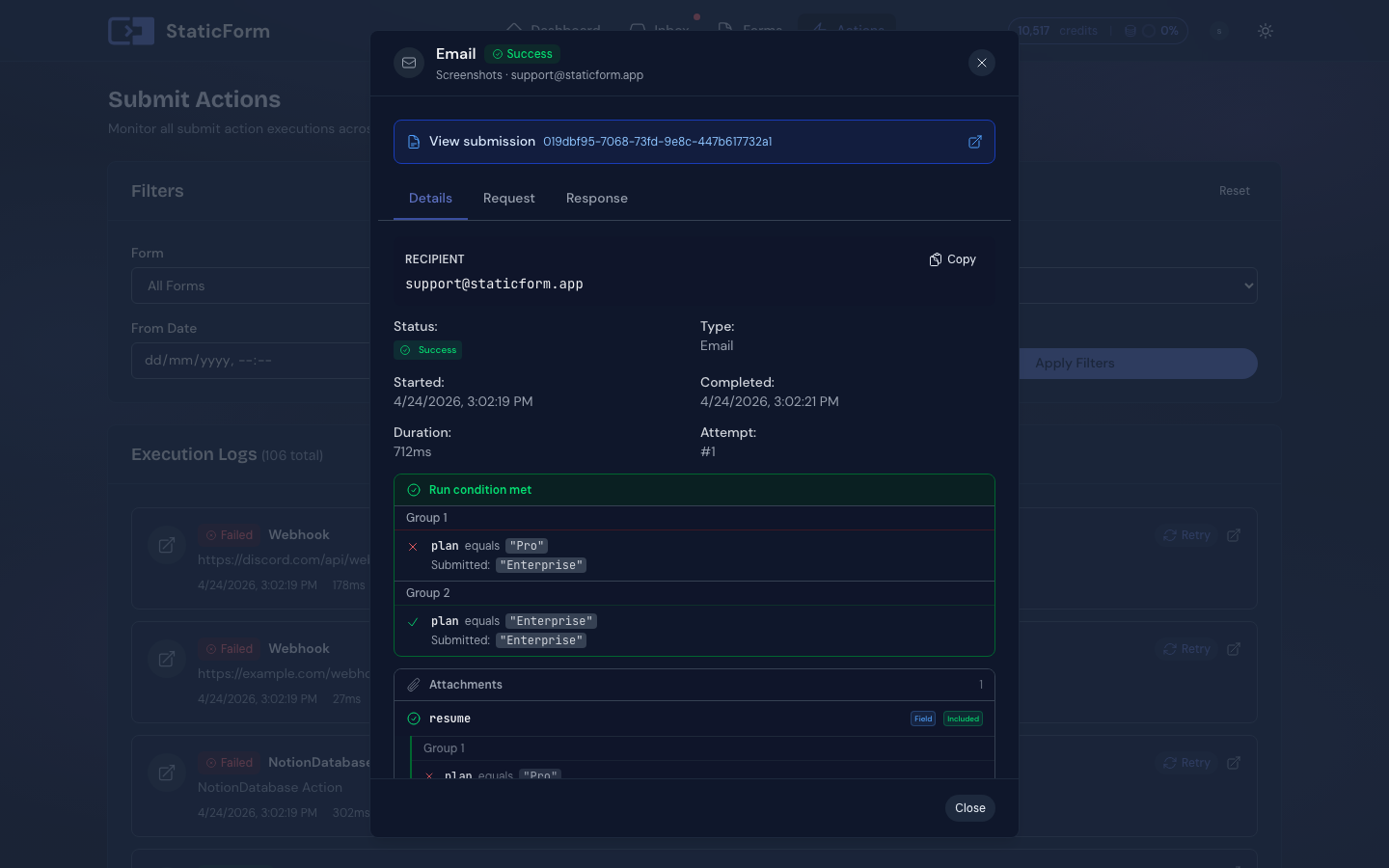
Run conditions let you control whether an action executes based on the submitted data. You can set one or more conditions on any field in your form, and the action will only run when all conditions are met. An action with no run conditions always runs.
Each condition compares a field value against a set of allowed values. Configure multiple actions to route submissions differently based on what was submitted.
Example: Slack alert only for high-priority tickets
A support form with a priority enum field (low, normal, high, critical). Add a Slack action with a run condition on priority matching high or critical. Low- and normal-priority submissions go to email only; urgent ones also fire the Slack alert.
Example: Different emails per department
A contact form with a department enum (sales, support, billing). Create three email actions, each with a run condition on department matching one value, each routed to a different recipient address.
Example: Webhook only when a checkbox is checked
A form with a newsletter boolean field. Add a webhook action with a run condition on newsletter matching true. The webhook fires only for subscribers; other submissions skip it entirely.
Enabling and Disabling Actions
Each action has an enable/disable switch in the dashboard. Disabled actions are skipped during submission processing but remain configured so you can flip the switch back on later.
Execution Logs
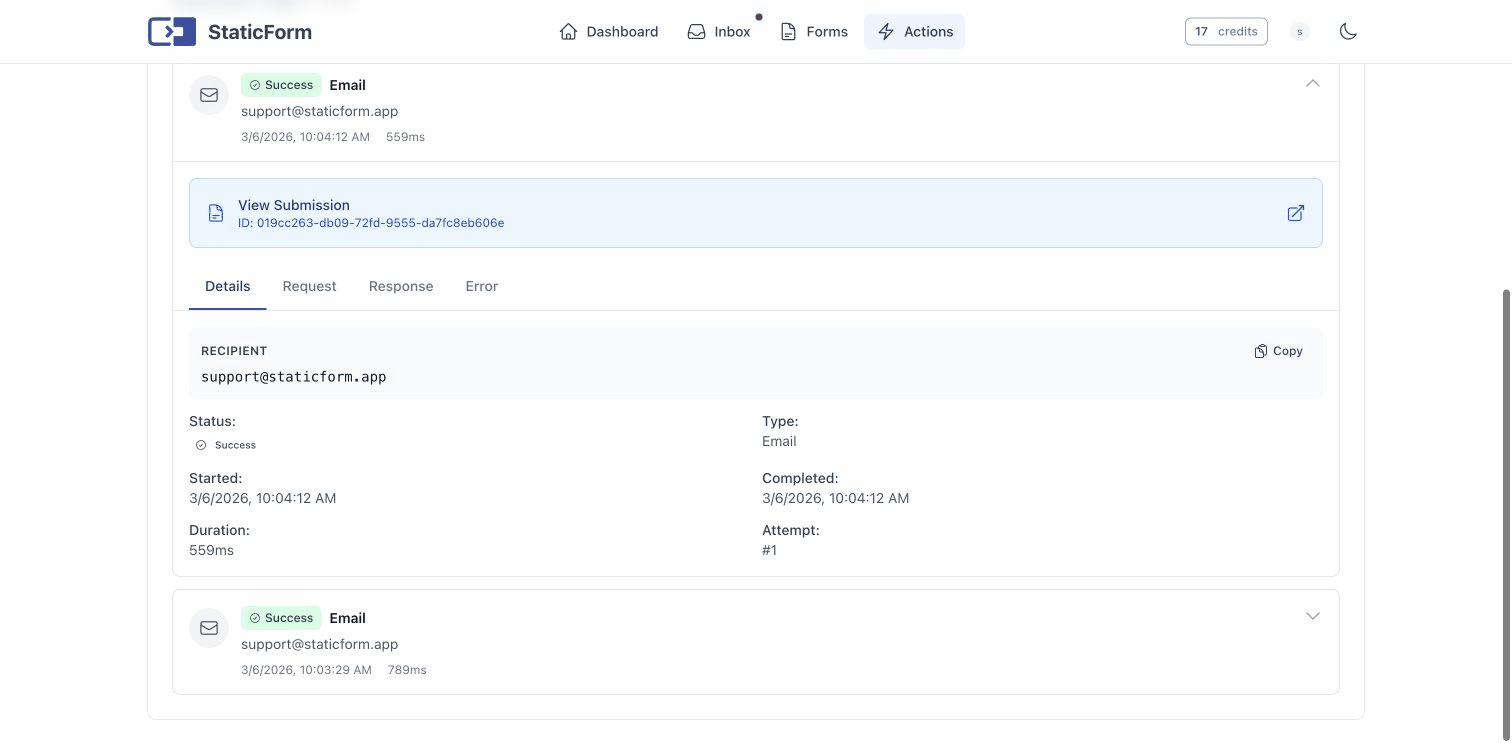
Every action execution is logged. In the dashboard you can:
- View execution logs per submission
- See success/failure status for each action
- Retry failed actions