Forms
Spam Protection
CAPTCHA, honeypot fields, and language detection to keep spam out.
On this page
StaticForm includes multiple layers of spam protection that work together to block unwanted submissions.
CAPTCHA
StaticForm supports the following CAPTCHA providers:
| Provider | Description |
|---|---|
| reCAPTCHA v3 | Google’s invisible CAPTCHA, no user interaction needed |
| reCAPTCHA v2 | Google’s classic “I’m not a robot” checkbox |
| hCaptcha | Privacy-focused alternative to reCAPTCHA |
| Turnstile | Cloudflare’s CAPTCHA, fast and privacy-friendly |
Setup
- Get a site key and secret key from your CAPTCHA provider
- In your form settings, select the CAPTCHA type and enter the secret key (both reCAPTCHA v2 and v3 use the reCAPTCHA option)
- Add the CAPTCHA script and widget to your frontend
- On submit, send the resulting token to StaticForm under the field name the provider expects (see below)
How CAPTCHA tokens reach StaticForm
When a CAPTCHA is enabled on a form, StaticForm expects every submission to include a token field in the POST body. The field name depends on the provider:
| Provider | Form-data field |
|---|---|
| reCAPTCHA v2 / v3 | g-recaptcha-response |
| Cloudflare Turnstile | cf-turnstile-response |
| hCaptcha | h-captcha-response |
If the field is missing or the token fails verification, the submission is rejected with a CAPTCHA error.
How the token gets there depends on which provider you use:
-
reCAPTCHA v2, Turnstile, and hCaptcha all render a widget into your page (a checkbox or invisible challenge). Once the user solves it, the provider’s script automatically injects a hidden
<input>with the right name and value into the surrounding<form>. As long as the widget lives inside the form, a regular HTML submit or anew FormData(form)call will pick the token up automatically. You don’t have to write any JavaScript. -
reCAPTCHA v3 is invisible and has no widget, so there is no hidden input. You have to call
grecaptcha.execute(siteKey, { action })yourself, get back a token, and append it to your form data asg-recaptcha-responsebefore submitting.
In short: for the three widget-based providers, dropping the right <div> inside your form is enough. For reCAPTCHA v3, you have to wire up the token injection in JavaScript.
Use the JavaScript helper if you’d rather not handle this yourself
If you don’t want to manage scripts, widgets, and token plumbing by hand, the StaticForm JavaScript helper does it for you. It supports all four providers, auto-loads the provider’s <script> tag for you, programmatically generates a fresh reCAPTCHA v3 token on every submit, picks up the token from the rendered widget for v2/Turnstile/hCaptcha, and resets the widget after each submission so users can submit again:
// reCAPTCHA v3 (invisible, generates tokens programmatically)
StaticForm.attach(form, {
  endpoint: 'https://api.staticform.app/api/v1/forms/YOUR_FORM_ID',
  captcha: { type: 'recaptcha-v3', siteKey: 'YOUR_SITE_KEY' },
});

// reCAPTCHA v2 / Turnstile / hCaptcha
// (render the provider's widget inside your form, then:)
StaticForm.attach(form, {
  endpoint: 'https://api.staticform.app/api/v1/forms/YOUR_FORM_ID',
  captcha: { type: 'turnstile' }, // or 'recaptcha-v2' or 'hcaptcha'
});
See the JavaScript helper docs for the full setup (script tags, widget markup, and config) of each provider.
Honeypot
A honeypot is a hidden field that real users won’t fill out but spam bots will. If the field has a value, the submission is flagged as spam.
Setup
Enable the honeypot in your form settings and choose a field name (default: website_url). Then add a hidden field to your HTML:
<div style="display: none;" aria-hidden="true">
  <input type="text" name="website_url" tabindex="-1" autocomplete="off" />
</div>
Tip: Use a field name that looks like a real field (like
website_url) to trick bots into filling it out.
Language Detection
Language detection analyzes the text content of submissions and flags those that don’t match your expected languages.
Setup
- Enable language detection in your form settings
- Set your expected languages using ISO 639-2/T codes (3-letter, e.g.
eng,deu,fra) - Optionally specify which fields to check (defaults to all text fields)
This is useful if your form targets a specific audience and you want to filter out submissions in unexpected languages.
Request Header Analysis
For client-side submissions, StaticForm inspects the request headers. Real browsers send a consistent set of headers that automated HTTP clients do not, so a submission that doesn’t look like it came from a browser is treated as spam. This runs automatically and requires no configuration.
Important when testing: If you test a client-side form with
curl,wget, Postman, HTTPie,python-requests,axios,node-fetch, a headless browser, or any similar tool, the submission will almost certainly be classified as spam. This is expected behaviour, not a bug. The API still answers200 OKand the submission is stored, but it lands in the spam list, and submit actions such as email notifications and webhooks are skipped.Test your form from a real browser instead. Open the page, fill in the fields, and submit it the way a visitor would. That is the only way to see what actually happens with real traffic. If a command-line test submission never reached your inbox, look in the spam list in the dashboard: that is where it went.
IP-Based Analysis
For client-side submissions, StaticForm performs IP-based analysis to detect known spam sources. This runs automatically and requires no configuration.
Note: IP-based analysis is skipped for server-side submission mode since server IPs are expected.
Content Analysis
Alongside the layers above, StaticForm scores the content of each submission. This automatically catches the unsolicited sales pitches that get past CAPTCHA and honeypots, such as cold outreach for services, lead-generation offers, and get-rich-quick or gambling promotions. It weighs several signals together rather than reacting to any single word, so a genuine message that happens to mention a price or a meeting link is not flagged on its own. This runs automatically with no configuration, and like everything else it only contributes to the spam score, so you can always review and override the result in the dashboard.
Spam Management
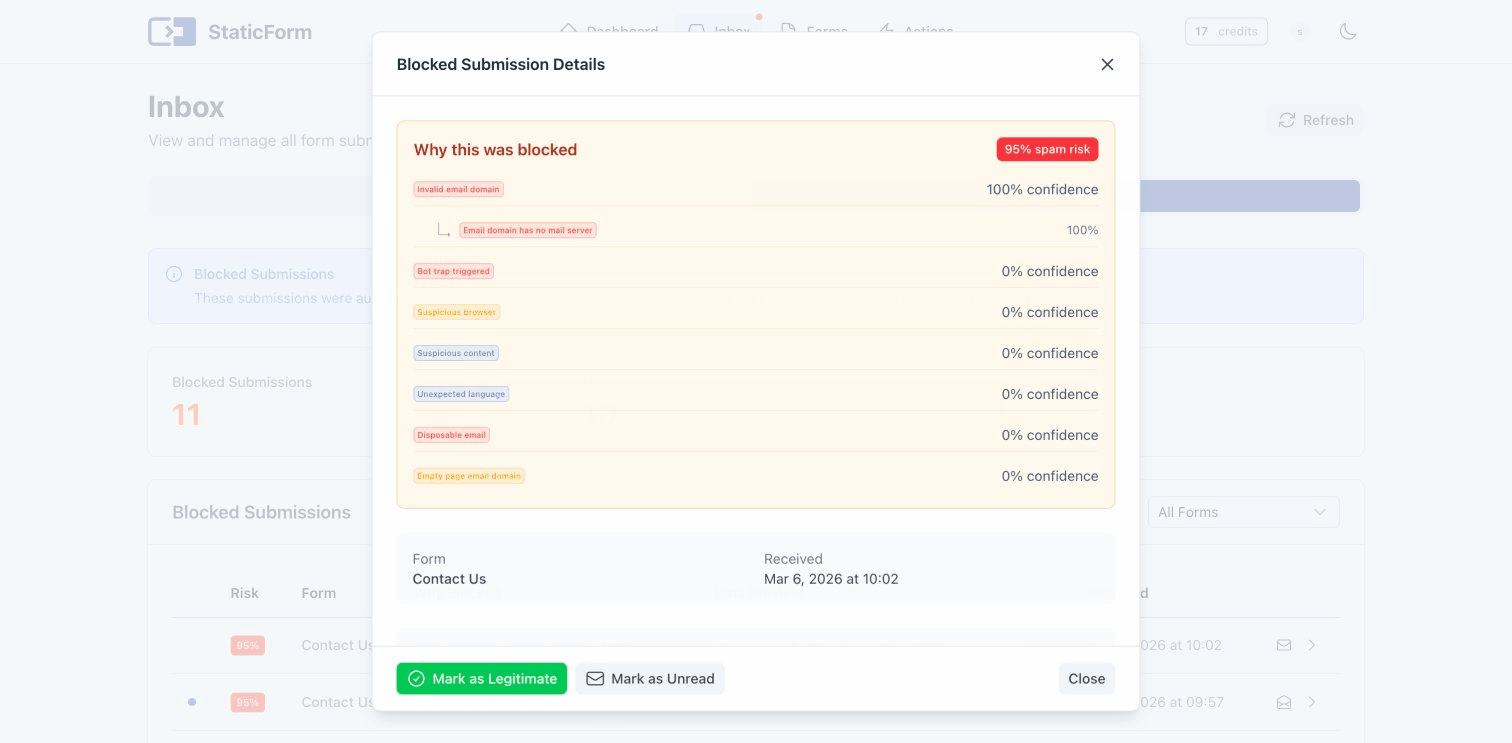
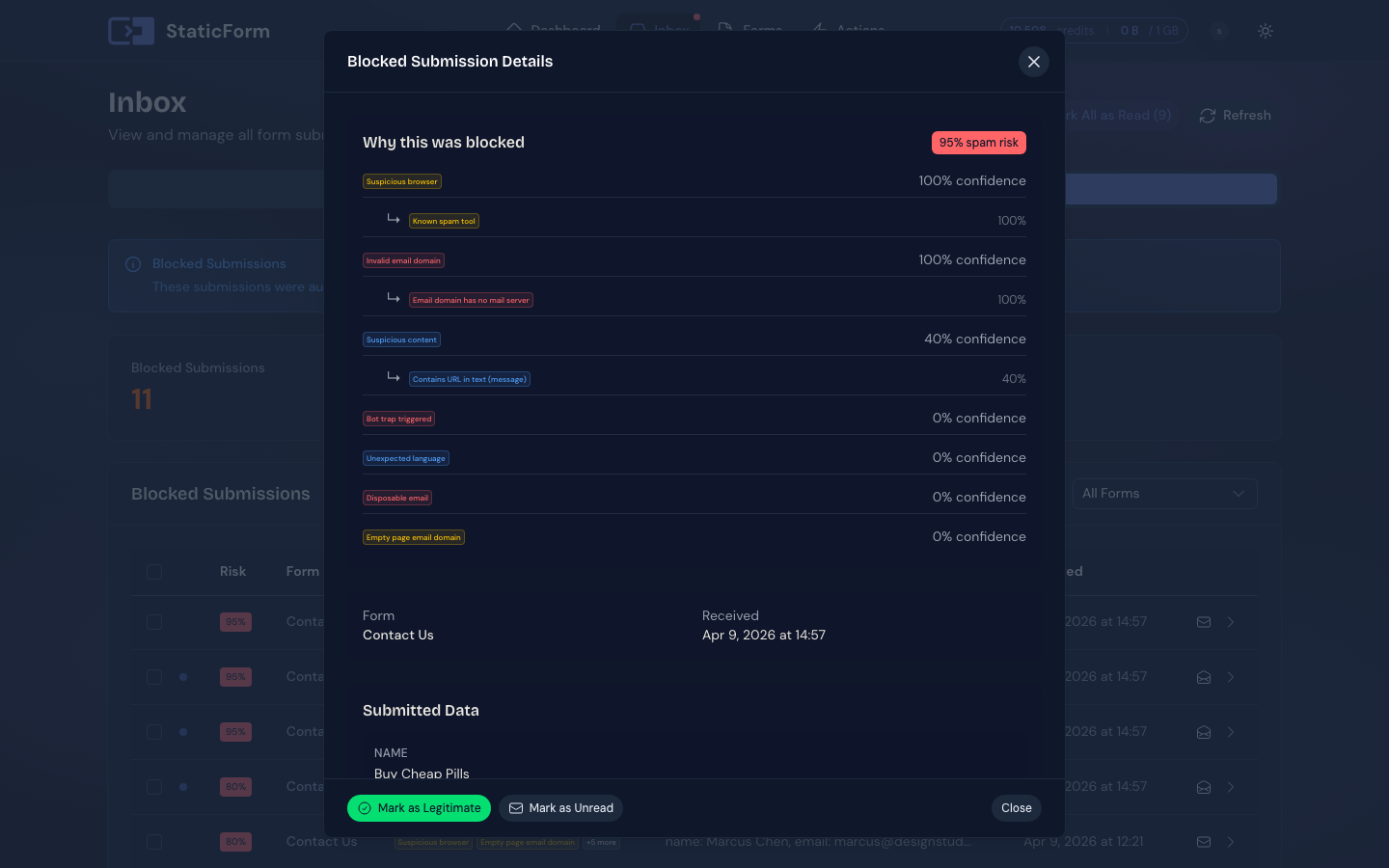
All submissions include a spam probability score. In the dashboard you can:
- View spam scores and detection categories for each submission
- Manually mark submissions as spam or legitimate
- View separate spam and legitimate submission lists