Forms
Payment Forms
Collect payment via Stripe Checkout when a form is submitted. You provide a restricted Stripe API key from your own Stripe account. Fixed amount, per-field amount, line items, with full conditional rules.
On this page
Payment Forms route the submitter through Stripe Checkout before the submission is recorded. You provide a restricted API key from your own Stripe account. There is no Stripe Connect platform relationship, and StaticForm doesn’t custody funds or take a cut. The feature is available on the Pro plan.
How money moves
- You create a Stripe restricted API key in your Stripe Dashboard with a narrow set of scopes (listed below).
- You paste the key into StaticForm. StaticForm stores it encrypted.
- When someone submits a payment-enabled form, StaticForm uses your key to create a Stripe Checkout session on your account.
- Stripe redirects the submitter through Checkout. Cards / wallets / etc. are processed by Stripe, so StaticForm never sees them.
- On payment success, Stripe sends a webhook to a per-connection URL on StaticForm. StaticForm verifies the signature with the per-connection webhook secret you supplied, then records the submission.
You can revoke at any time by deleting the API key in your Stripe Dashboard. StaticForm immediately stops being able to act on your account.
Scenarios
- Fixed amount per submission: Event tickets, paid signups, application fees.
- Amount from a form field: Donations, “pay what you want”, tips.
- Line items priced from form fields: Product or service orders. An enum field maps to a price table; an optional quantity field multiplies.
All three modes support conditional rules so the charge can depend on what the user fills in: “if plan = pro charge €49, else if plan = basic charge €19, else don’t require payment.”
Step 1: create a restricted API key
In your Stripe Dashboard:
- Developers → API keys → Restricted keys → Create restricted key.
- Set the scopes to:
Checkout Sessions: WriteCustomers: Write (so Checkout can auto-create the customer record)
- Leave every other scope at None.
- Save and copy the secret (starts with
rk_test_orrk_live_).
StaticForm only ever calls Stripe to create Checkout sessions. Everything else (payment success, refunds, expiry) arrives via webhooks, which don’t use the key, so no read scopes are needed.
Use a test mode key (
rk_test_…) until you’re confident the flow works for your form, then switch to a live-mode key.
Step 2: add the connection to StaticForm
In StaticForm:
- Settings → Integrations → Stripe (Payment Forms) → Add Stripe connection.
- Give it a label (e.g. “Acme production”) and paste the restricted key.
- StaticForm verifies the key by creating and immediately expiring a throwaway Checkout session (it’s never payable), then saves the key encrypted. You may see this test session in your Stripe logs.
Step 3: register the webhook
After saving the connection, StaticForm shows the webhook URL for it. Copy it. Back in Stripe:
- Developers → Webhooks → Add endpoint.
- Endpoint URL: the copied URL (it has the form
…/v1/payments/webhook/stripe/{connectionId}). - Listen to these events:
checkout.session.completedcheckout.session.expired
- Create the endpoint, then reveal the signing secret (
whsec_…) and paste it back into StaticForm’s webhook setup screen.
Stripe creates the endpoint using your account’s default API version, which you can’t change in the Add endpoint dialog. You don’t need to. StaticForm accepts current Stripe API versions, so no version configuration is required on your side.
The connection now shows Ready in the integrations list and is selectable from any payment-enabled form’s connection picker.
Configure payment on a form
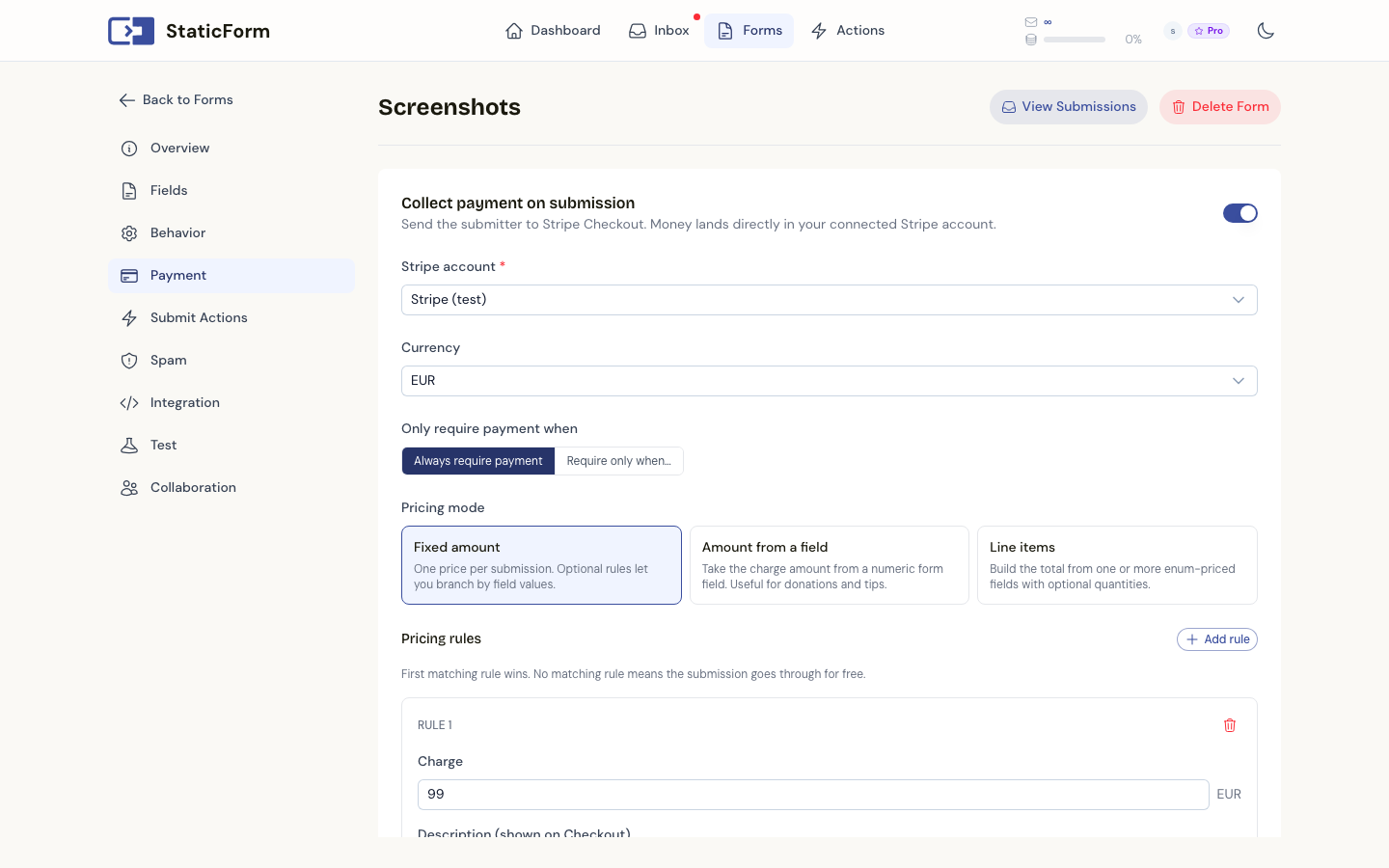
In the form editor, open the Payment tab.
- Toggle Collect payment on submission.
- Pick the connected Stripe account the charge should go to.
- Choose a currency.
- (Optional) Set a top-level condition to only require payment when the condition matches the submitted data. Useful for coupon fields, “free for students” toggles, member discounts.
- Pick a pricing mode and configure the rules.
Fixed amount
Add one or more rules. Each rule has an amount and an optional condition. The first rule whose condition matches wins. If no rule matches, the submission goes through as a free submission.
Amount from a field
Add one or more rules. Each rule names a numeric form field and an optional minimum amount. First matching rule wins; the submitted value of the named field becomes the charge.
Line items
Add line items. Each item names an enum field and a price map mapping each enum option to its price. Optionally name a quantity field to multiply. All matching items accumulate into one Checkout session.
Submission flow
- User submits the form.
- StaticForm validates fields and files, stages everything, and creates a Stripe Checkout session on your account using your restricted key.
- The user is redirected to Stripe Checkout to pay.
- On payment success, the submission is recorded and your submit actions (email, webhook, Sheets, Notion) fire as normal.
- On payment abandonment or expiry, the staged submission and any uploaded files are cleaned up automatically. No submission is recorded.
Because the submitter has to leave your page for Stripe Checkout and come back, a payment-enabled form always responds with an HTTP redirect rather than a JSON response, for both success and error outcomes. The JSON Response option is disabled once payment is on, and both redirects are required (the form won’t save without them). Set the success and error destinations on the form’s Behaviour tab. They default to StaticForm’s built-in result page, and you can point either at your own URL instead.
If your form has an email field (a field with the email validation rule), its submitted value prefills the email on Stripe Checkout, so the buyer doesn’t retype it. Stripe leaves the field editable. Whenever the form has one or more email fields, the payment panel shows a picker so you can choose which one feeds Checkout (it defaults to the first). When the form has no email field, Checkout asks for the email as usual.
If the resolved amount falls below Stripe’s minimum charge (around €0.50), the submission passes through as free rather than failing. This keeps coupon-bringing-total-to-zero flows working cleanly.
Refunds are handled entirely in your own Stripe Dashboard. The submission already recorded in StaticForm stays as-is.
Security notes
- Your restricted API key is stored encrypted at rest with the StaticForm data-protection key.
- StaticForm never sees card numbers; those are entered into Stripe Checkout directly.
- Webhook events are signed by Stripe and verified by StaticForm against the per-connection signing secret you provided.
- You can revoke the key any time from your Stripe Dashboard. Doing so instantly invalidates StaticForm’s access. There is no separate “uninstall” step required on Stripe’s side.
Limits and caveats
- One currency per form.
- Recurring subscriptions, invoicing flows, ACH/SEPA debits, and partial payments are not supported in this release.
- File uploads on payment-enabled forms are supported: files are staged before Checkout and finalised on payment success.