Dashboard
Data Views
A generated overview of what each form has collected, with charts, filters, and a customizable records table.
On this page
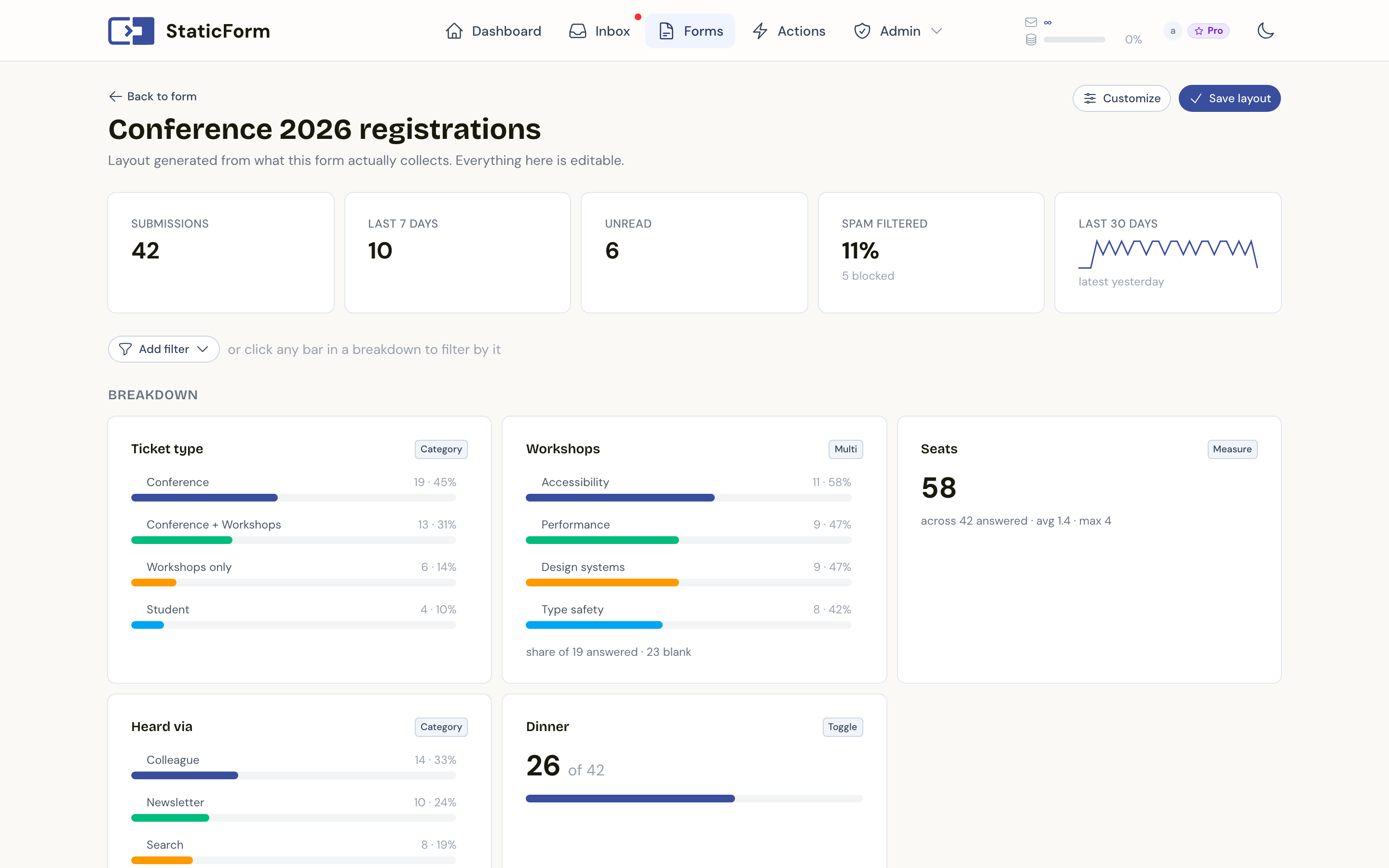
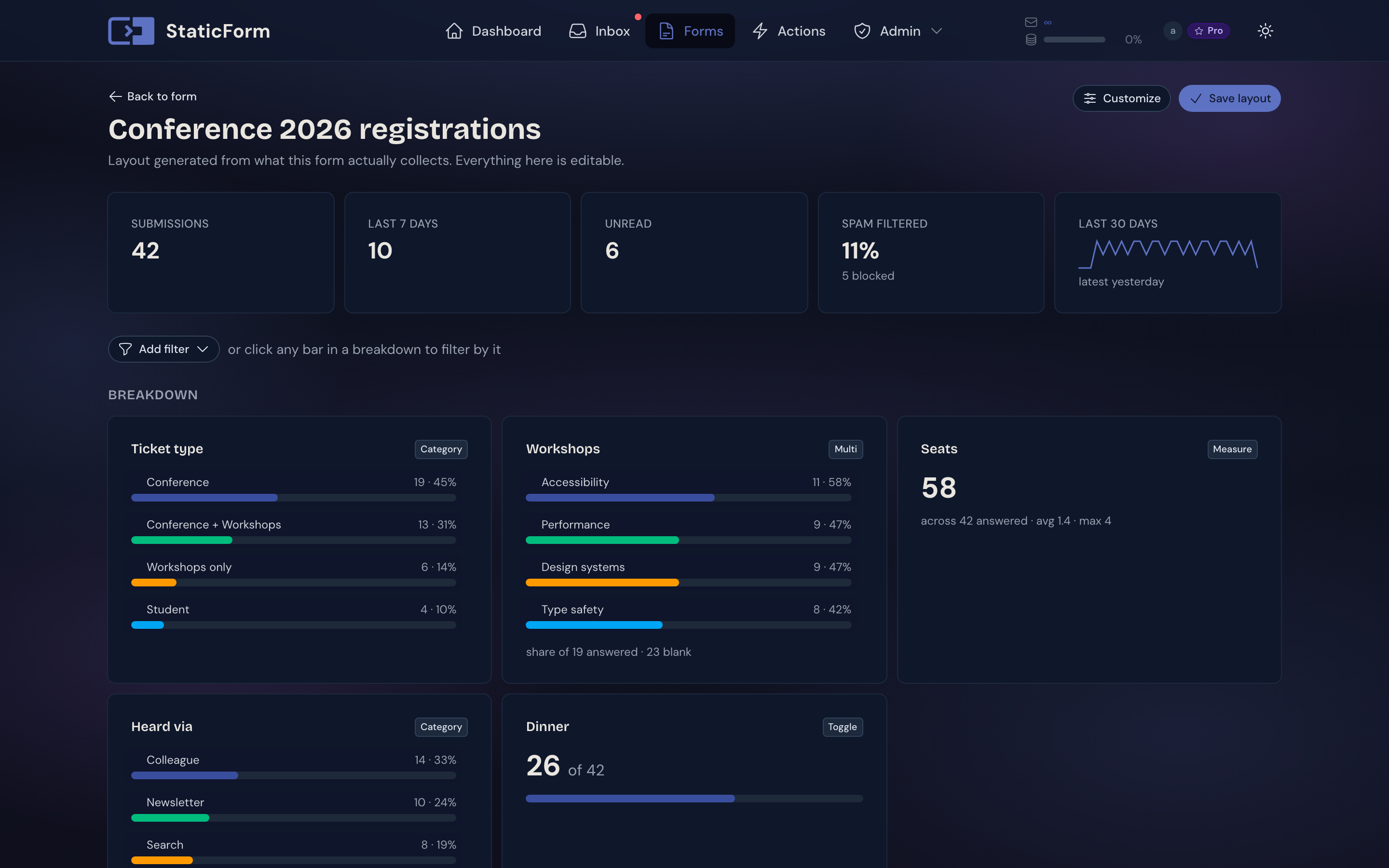
Every form has a data view that shows what the form has actually collected: headline numbers, a chart for each field that can carry one, and a table of all records. It is generated from your submissions, so there is nothing to set up. Open a form and click View Data, or use View Data on the form card in the forms overview.
How fields are shown
StaticForm looks at both the declared field type and the values that were actually submitted, and picks a role for each field:
| Shown as | What you get |
|---|---|
| Name or title | Bold text that identifies the row |
| A clickable mailto link | |
| Phone | A clickable tel link, never totalled |
| Choice | A badge per record and a chart of the options |
| Multiple choice | One badge per value and a chart of the options |
| Yes / no | A tick or cross and a share chart |
| Number | Right aligned, totalled and averaged |
| Date | A formatted date |
| Attachment | A download link |
| Long text | Truncated in the table, shown in full when you open the record |
| Plain text | Shown as is |
Fields that were never filled in are hidden. Only multiple-choice fields declared with multiple selection allowed are split on commas, so a free-text answer like “Yes, please” stays a single value.
A contact form typically gets a clean table and headline counts without charts, because names and messages cannot be charted. Charts appear only on fields that can carry them.
Headline numbers
The top of the page shows the number of submissions, submissions in the last 7 days, unread submissions, the share of submissions filtered as spam, and a sparkline of the last 30 days. When a filter is active, the first number shows how many submissions match.
Filtering
Click Add filter to pick a field and a value, or click any bar in a chart. The whole page narrows together: the other charts, the headline numbers, and the records table. Click an active filter to remove it.
Filters are stored in the URL, so a filtered view survives a reload and can be bookmarked or shared with a collaborator who has access to the form.
Records table
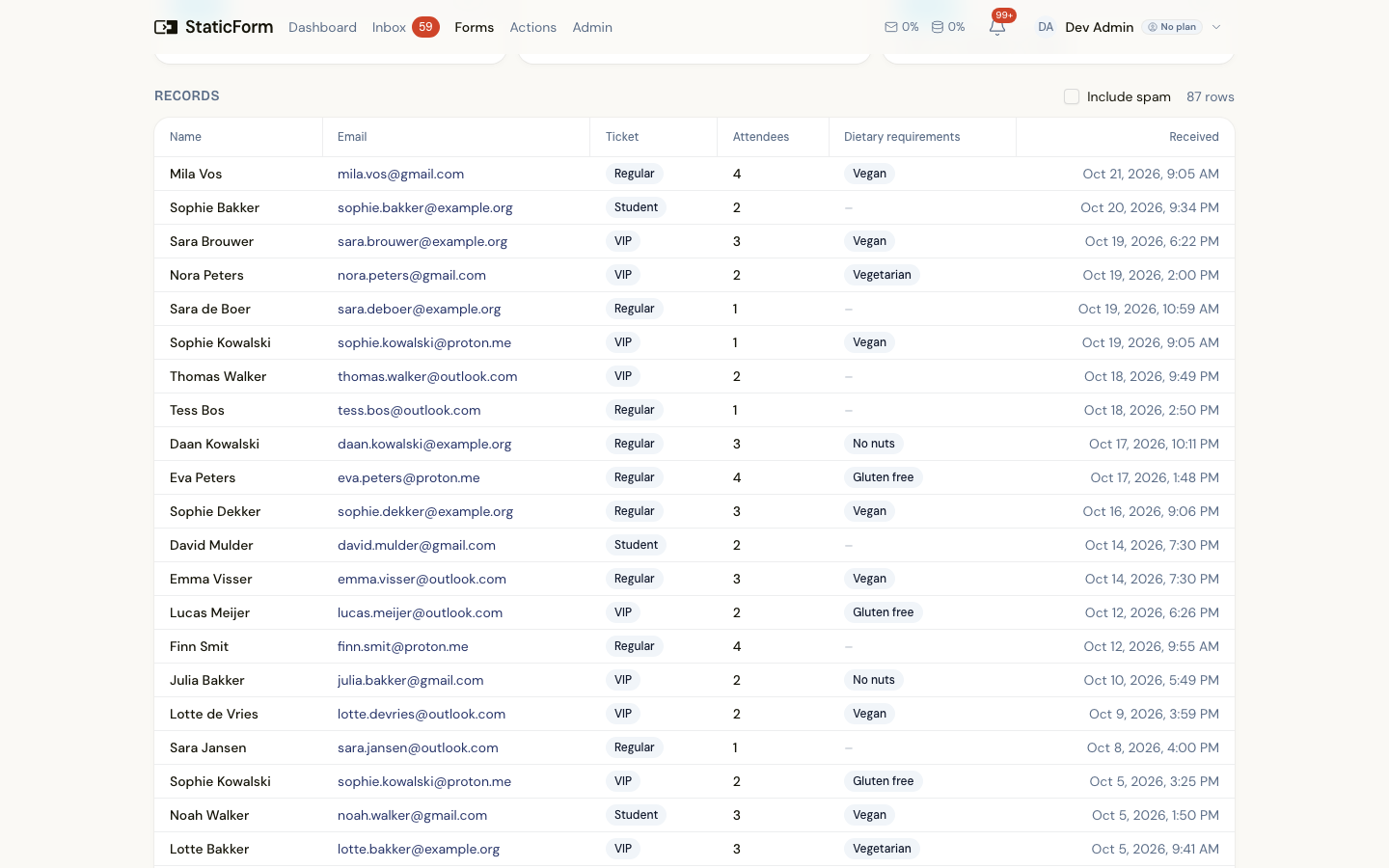
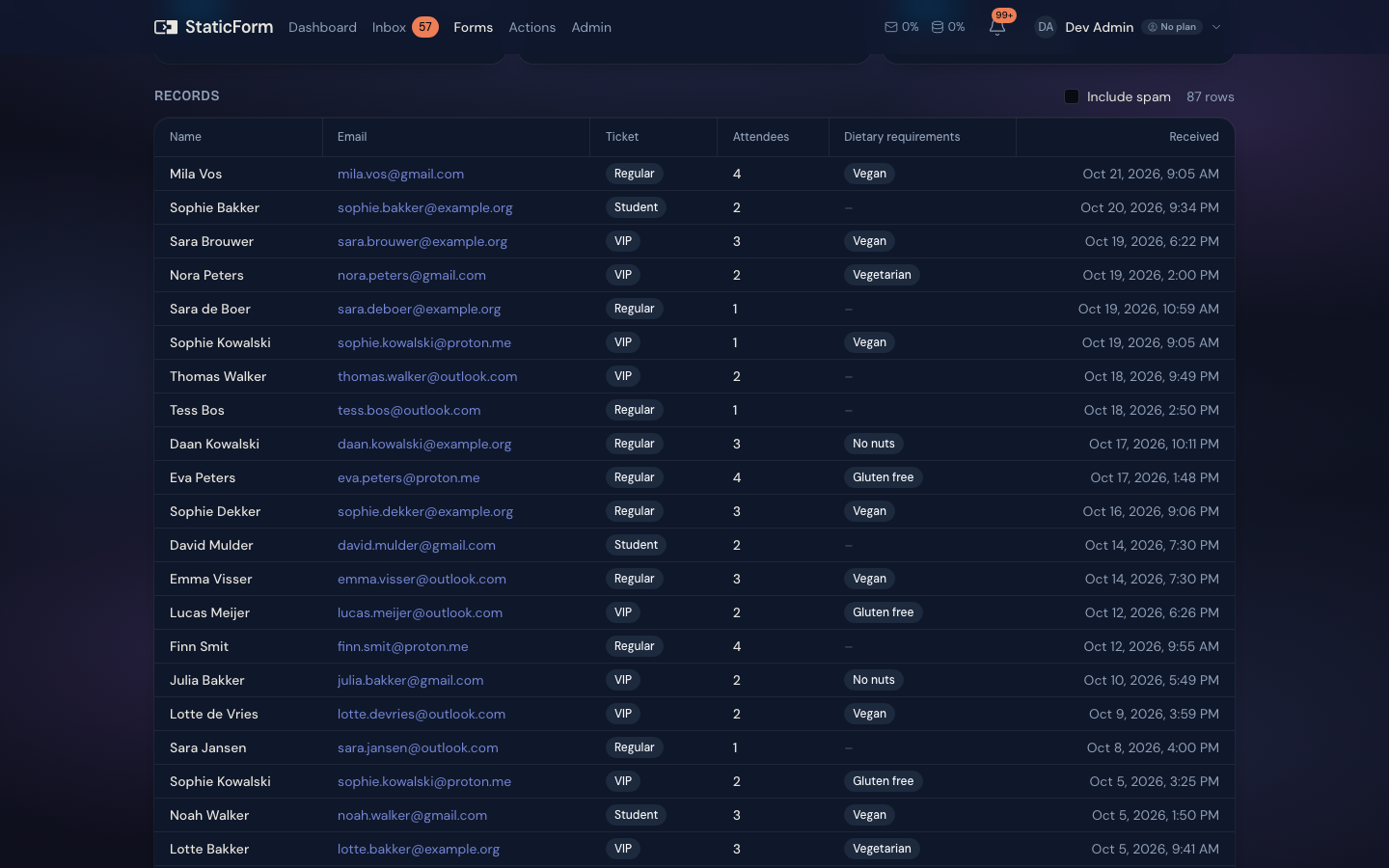
The table lists every submission with the columns from the view. Click a row to open the full submission. You can:
- Check Include spam to also show submissions that were filtered as spam
- Drag the edge of a column header to resize it, or double-click it to fit the content
Customizing the view
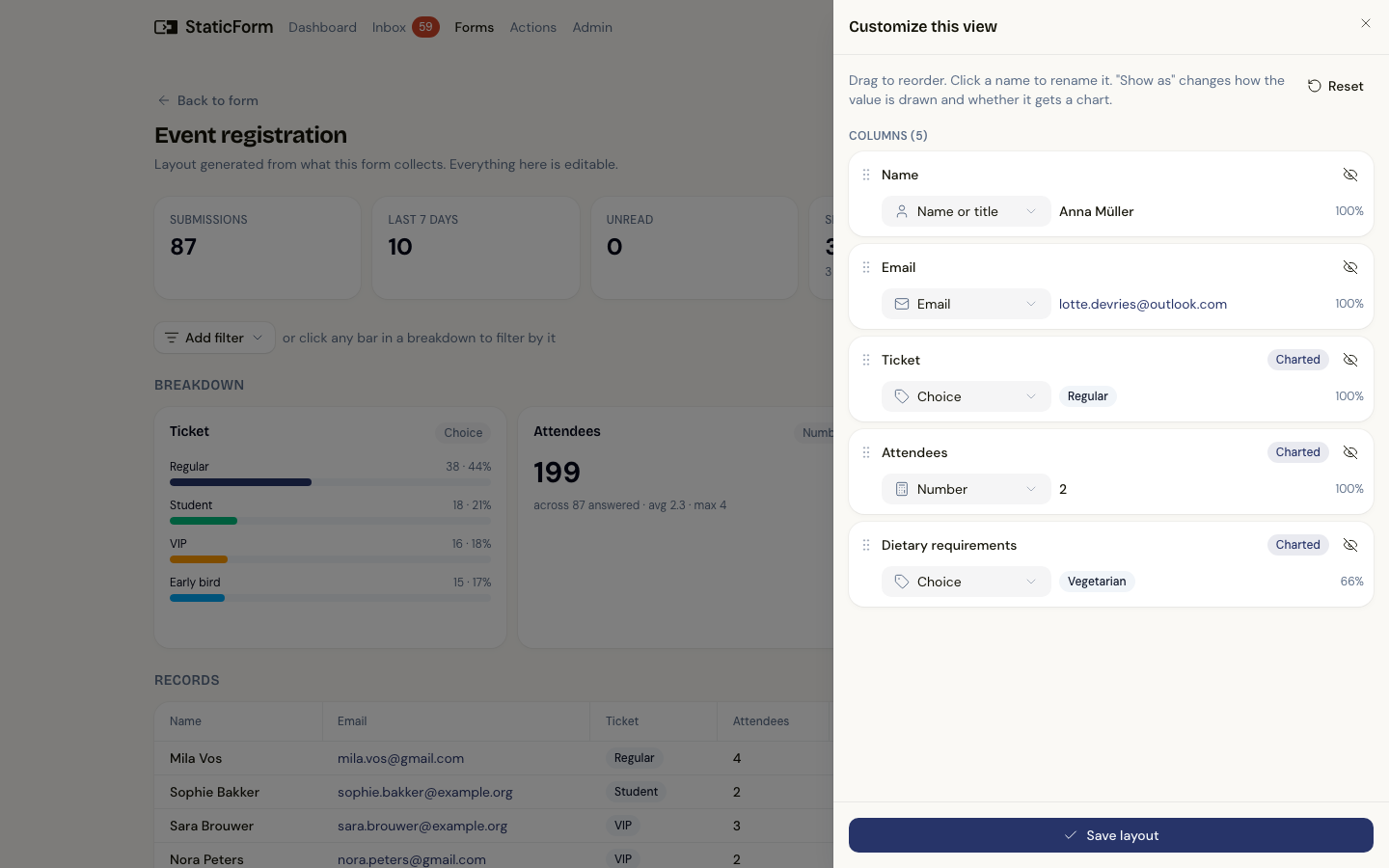
Open the customizer to change how the view reads:
- Drag fields to reorder the columns
- Click a field name to rename its column
- Hide fields you never look at, and show them again from the Hidden list
- Change Show as if a field was read the wrong way, for example a reference number that was taken for a number
Click Save layout to keep your changes. Reset returns to the generated layout.
The layout is saved per form and shared with everyone who can see the form’s submissions. Only your changes are stored, so new fields still show up automatically.
Permissions
The data view is available to the form owner and to collaborators with the View Submissions permission, who can also save the layout. See Collaboration for details.